


The Devices tab of the XBee Network page displays all XBee Hive for Wi-SUN border routers and XBee for Wi-SUN nodes in the network in a table and provides controls for managing them.
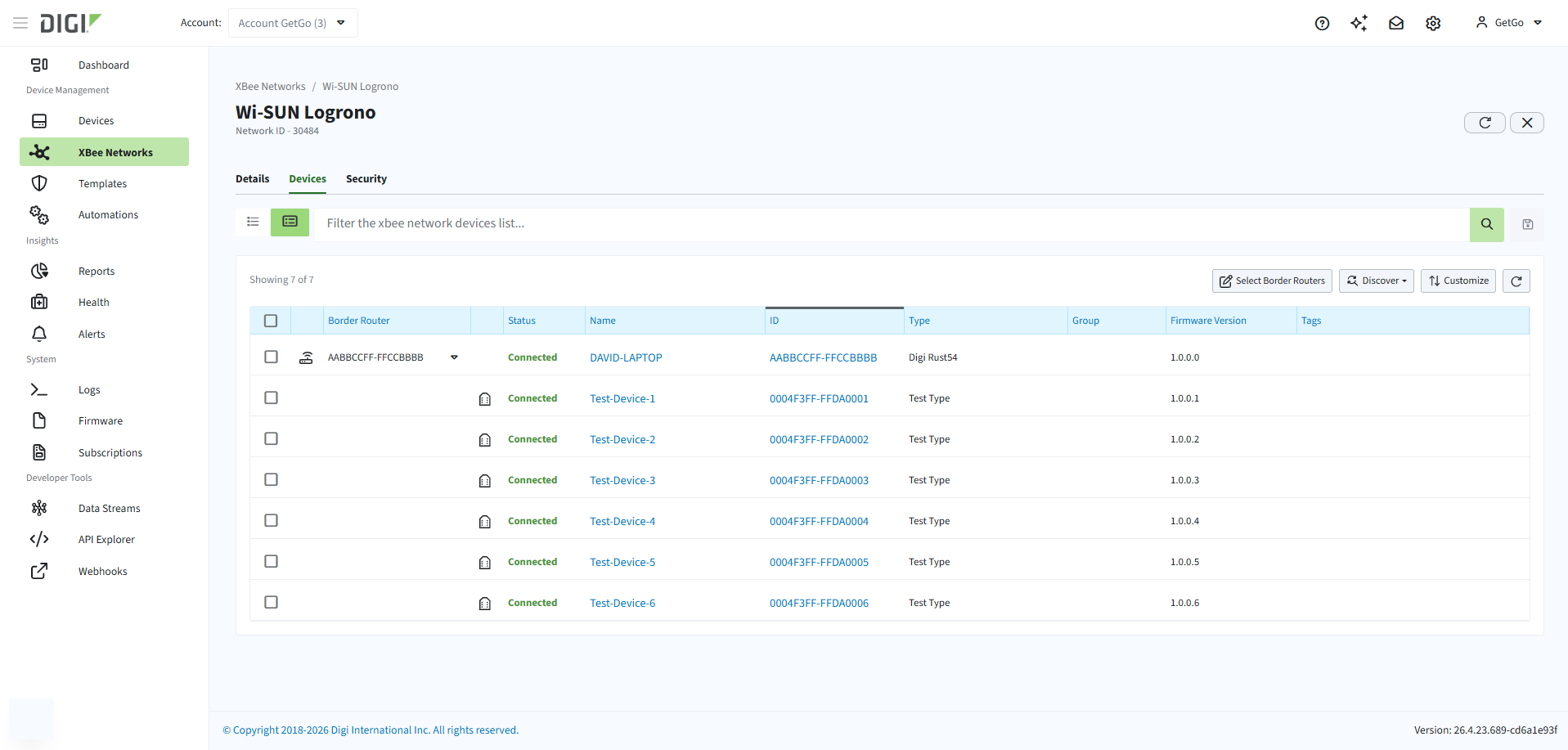
The tab supports two view modes:
-
List: All devices in a flat table.
-
Group: Border routers as parent rows with their associated nodes as children. This is the default view and makes the relationship between each border router and its nodes immediately visible.
XBee for Wi-SUN nodes appear in the network automatically when the border router they connect through is added. If you expect new nodes to be present but they haven’t appeared yet, run a device discovery to prompt the border routers to report their connected devices.
| XBee Hive for Wi-SUN border routers must have the Bridge mode enabled for their nodes to connect to Remote Manager. See Configure remote management for XBee nodes. |
You can access the individual device page of any border router or node by clicking its Name or ID in the table. From there you can perform device-level management operations such as configuration and firmware updates. See Manage Wi-SUN devices remotely.
Add or remove border routers
To add or remove border routers from a network in Remote Manager:
-
Go to XBee Networks and click the Name or ID of the network. The XBee Network page opens.
-
Select the Devices tab.
-
Click Select Border Routers. A side panel opens listing all border routers registered in your Remote Manager account.
-
Select border routers to add; deselect to remove.
-
Click Save.
| All border routers in a network must share the same protocol and network parameters, and each border router can belong to only one network at a time. |
Adding a border router also adds all XBee for Wi-SUN nodes currently connecting to Remote Manager through it. Removing a border router also removes all its associated nodes.
Discover devices
A discovery asks all border routers in the network to report their connected XBee for Wi-SUN nodes. Run a discovery when new nodes are expected but haven’t appeared in the Devices table yet.
-
Go to XBee Networks and click the Name or ID of the network. The XBee Network page opens.
-
Select the Devices tab.
-
Click the Discover drop-down and select an option:
-
Discover Devices: Standard discovery on all border routers in the network.
-
Discover Devices (clear gateways cache): Clears the border router cache before discovering. Use this if a previous discovery returned incomplete or stale results.
-
A flash message confirms the discovery is in progress. New nodes appear in the table as they connect to Remote Manager.
