


Before or after deploying a Python application to the XBee Hive for Wi-SUN, you may need to open a terminal to explore the device, verify where your applications are/should be located, or manually run and stop them for testing. This is especially useful during development, when you need to confirm deployment paths and execution commands.
Although you can connect to the device through a serial interface and use a standard terminal, this page focuses on SSH access. As long as your device is connected to the same LAN as your PC, you can open an SSH session without additional configuration.
Access the terminal
The XBee Hive for Wi-SUN can be accessed remotely using any terminal that supports SSH. To streamline this process, Digi provides two main options:
XBee Studio includes an embedded tool called Terminal to interact with XBee Hive for Wi-SUN devices over an SSH connection. It correctly interprets control codes and escape sequences, providing a smooth and reliable CLI experience.
Follow these steps to access the Terminal view of your XBee Hive for Wi-SUN device:
-
Ensure your device is connected to the same LAN as your PC.
-
Open XBee Studio.
-
Wait for your device to be discovered.
-
Click on the device. The Dashboard page appears. It contains:
-
The device information.
-
Network information.
-
A list of quick actions.
-
-
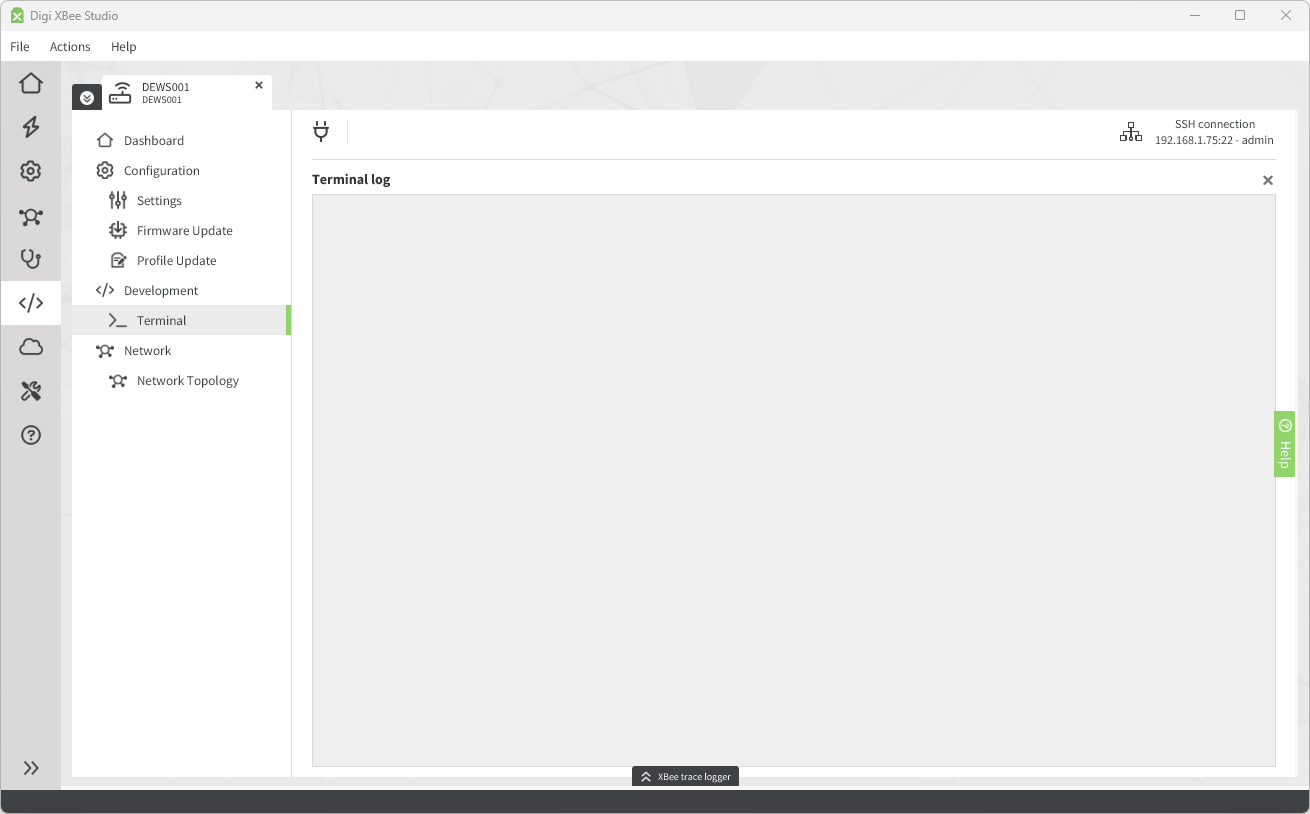
Click the Terminal item in the sidebar of the tab, located within the Development section. Terminal view is displayed.
-
Open the connection by clicking on the plug adapter button on the top toolbar.
Access selection menu: a: Admin CLI s: Shell q: Quit Select access or quit [admin] : -
Press S to select the Shell option.
The XBee Hive for Wi-SUN includes an embedded web application that lets you configure settings and open an SSH console for manual access.
To open the terminal:
-
Launch your preferred web browser.
-
In the address bar, enter:
https://<device-ip>/terminal/, replacing<device-ip>with the device’s IP address. -
Accept any security warning your browser displays.
-
Enter your login credentials. The terminal view appears.
-
When prompted in the terminal, enter your credentials again. The following prompt is displayed:
Access selection menu: a: Admin CLI s: Shell q: Quit Select access or quit [admin] : -
Press S to select the Shell option.
While the methods above are the easiest way to open a terminal to access the XBee Hive for Wi-SUN, you can also connect to it using any standard SSH client. This can be useful if you want to run long sessions, use custom scripts, or integrate the terminal into your own workflow.
On Windows, you can use PuTTY, a popular SSH client. Follow these steps to establish a connection with the device using PuTTY:
-
Open PuTTY and enter the IP address of your XBee Hive for Wi-SUN in the Host Name (or IP address) field.
-
Set the Connection type to SSH and click Open.
-
When prompted, log in using the default credentials provided for the device. The following prompt appears:
Access selection menu: a: Admin CLI s: Shell q: Quit Select access or quit [admin] : -
Press S to select the Shell option.
On Unix-like systems, you can use the built-in ssh command from a terminal window.
Follow these steps to establish a connection with the device:
-
Run the following command:
# ssh <user>@<device_ip_address>Replace
<user>and<device_ip_address>with the corresponding values for your device. -
After authentication, you’ll have full access to the device’s shell, just as you would through XBee Studio. The following prompt appears:
Access selection menu: a: Admin CLI s: Shell q: Quit Select access or quit [admin] : -
Press S to select the Shell option.
| XBee Studio manages SSH credentials automatically, while third-party SSH clients require you to provide them manually. |
Explore the environment
Python applications deployed to the XBee Hive for Wi-SUN are stored in the device’s file system. You can use standard Linux commands to navigate directories, list files, and inspect application locations. For example:
# cd /etc/config/scripts/
# ls
my_sample_app/
This allows you to confirm that your application was deployed to the expected path before running it.
The directory /etc/config/scripts/ is generally the best place to store your Python applications, grouping each one in its own folder.
Run a Python application
To start a Python application manually:
# python <your_script>.pyFor example:
# python main.pyIf the application launches successfully, you will see any print() output or logging messages directly in the terminal.
This lets you test behavior in real time without additional setup.
Stop a running application
To stop the running application, press Ctrl+C in the terminal. This interrupts execution and returns control to the shell prompt.
You can then make changes to your code, redeploy the project, and rerun it as needed.
