


This view allows you to communicate with your XBee border router over the IP network.
Layout
The Terminal view is organized into the following main areas:
Toolbar
Located at the top of the view, it contains the following elements:
-
Open/Close connection button: Toggles the connection state between connected and disconnected.
By default, the terminal is disconnected.
-
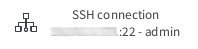
Connection indicator: Shows connection details, including the IP network icon, device IP and port, and the username used for the session.
Terminal log
This is the main section of the view.
By default, the terminal log is disabled until a connection is established. Once connected, the terminal becomes active and the caret starts blinking.
In the top-right corner you can see the following buttons:
| Button | Name | Description |
|---|---|---|
|
Clear log |
Erases the contents of the terminal log. |

Start a terminal session
By default, when you first open the terminal, it is disconnected. The log area remains inactive until a connection is established.
-
Click Open to establish communication with the device.
After the connection is established, the button icon changes to the connected state and the terminal log is enabled.
-
Depending on the device configuration, an access selection menu may appear:
Access selection menu:

    a: Admin CLI
    1: Serial: port1        (9600,8,1,none,none)
    s: Shell
    q: Quit

Select access or quit [admin] :
