


The Settings view adapts its content based on the type of XBee device you are configuring.
XBee modules
For XBee modules, the Settings view lists all AT settings supported by your XBee device. Settings are grouped into categories, each with a short description. Click a category to expand or collapse it.
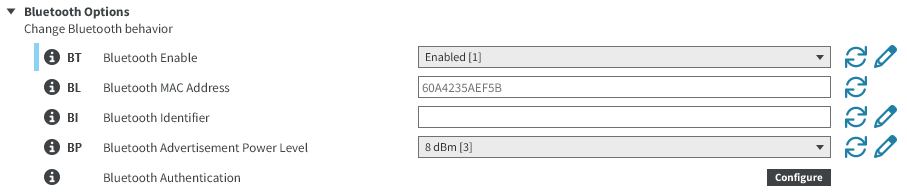
Each setting provides the following controls:
-
Information button: Displays a short description of the setting, including its default value and valid range, if the setting is numeric.
-
AT parameter: Displays the AT parameter associated with the setting. Some settings, such as actions, may not have an associated AT parameter.
-
Setting name: Displays the name of the setting.
-
Setting configuration control: Contains the text box or combo box where the setting value can be entered or selected. Read-only settings appear grayed out and cannot be edited.
Hover over a numeric field to view its valid range. Enter numeric values in hexadecimal format (without the
0xprefix), unless the hover text indicates that an ASCII value is required.If an invalid value is entered, an explanatory error message appears.
-
Units label: Displays the unit of measurement, if applicable.
-
Value calculator button: Opens a calculator (time or bitfield) for numeric settings that are difficult to compute. The calculator panel varies depending on the setting. Not all settings have a value calculator button.
-
Refresh button: Reads the current value of the setting.
-
Write button: Writes the new value of the setting. Read-only settings do not include this button.
Read settings
This action reads all settings from the device.
Click the Read all device settings  button.
Write settings
This action writes all modified setting values to the device.
Click the Write all device settings  button.
Load default settings
This action loads the default values of the radio firmware settings into their respective fields.
Click the Reset all settings to default values  button.
Default values are loaded but not immediately written to the device.
To apply them, click the Write all device settings button.
Search settings
This action searches for a specific setting. Click the search box and enter the AT parameter to locate. If found, the tool highlights the setting and scrolls it into view.
Expand or collapse all categories
This action expands or collapses all categories on the view.
Click the Expand all categories  or Collapse all categories
  button.
Show not default settings
This action filters the list to display only settings that differ from their default values.
Click the Show not default settings  button to enable the filter.
To display all settings again, click the Show all settings
button to enable the filter.
To display all settings again, click the Show all settings  button.
Border routers
When you open the Settings view of an XBee border router, XBee Studio automatically launches your default web browser and opens the device configuration interface.
This web interface provides access to all system and network configuration options available on the device, such as central management, network interfaces, VPN, firewall, services, authentication, and other settings.
After the first access, the Settings view in XBee Studio displays a message with an Open in browser button.
Clicking this button reopens the device configuration view if you closed it or need to access it again later.

