


This view allows you to communicate with the MicroPython stack of your XBee module using either the serial interface or the cloud connection, when connected through the cloud.
| Make sure your XBee module supports MicroPython. |
Layout
The MicroPython Terminal view is organized into the following main areas:
Toolbar
Located at the top of the view, it contains the following elements:

-
Open/Close connection button: Toggles the connection state between connected and disconnected.
By default, it is disconnected.
-
Serial port line status indicator: Displays the status of the RS-232 hardware flow control lines.
Green indicates an asserted line, while white indicates a de-asserted line.
You must open the console connection to display the line status and enable the line status control.
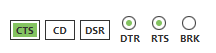

You can view and manage the following lines from the line status indicator:
Line ID Line name Description CTS
Clear to send
Indicates that the connected device is ready to accept data.
CD
Carrier detect
Detects the presence of connection.
DSR
Data set ready
Indicates that the connected device is ready for communication.
DTR
Data terminal ready
Indicates that the terminal is ready for communication.
RTS
Ready to send
Requests that the connected device prepare to receive data.
BRK
Break
Engages the serial line break. Asserting this line places the
DIline high, preventing data from being sent to the radio. -
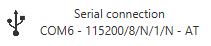
Connection indicator: Shows connection details.
Depending on the connection type, this information includes:
-
The icon of a serial connection, the port name, and the rest of the serial port parameters of the connection and operating mode of the device.
-
The icon of a Digi Remote Manager® connection, the Digi Remote Manager® account the device is registered into, and the Device ID of the device.

-
Terminal log
This is the main section of the view.
By default, the terminal log is disabled until a connection with the device is established. Once connected, the terminal becomes active and the caret starts blinking.
In the top-right corner you can see the following buttons:
| Button | Name | Description |
|---|---|---|
|
Clear log |
Erases the contents of the terminal log. |

Start a terminal session
By default, when you first open the terminal, it is disconnected. The log area remains inactive and the serial port status indicator disabled until a connection is established.
-
Click Open to establish communication with the device corresponding to the terminal.
If this is your first connection and the device is not in MicroPython REPL mode, a dialog prompts you to enable it before connecting.
After the connection is established, the button icon changes to the connected state and the serial port status line and the terminal log controls are enabled.
-
At this point, all MicroPython logs of the application running in the device are captured and displayed in the terminal log control.
If the device is not running any MicroPython application, nothing should be printed in the terminal log.
-
To work with the MicroPython REPL:
-
Press Enter on the terminal log if the device is not running a MicroPython app.
The MicroPython REPL prompt should appear for you to start working with it.
-
Stop the running MicroPython app by pressing Ctrl+C.
The MicroPython REPL prompt should appear for you to start working with it.
-
Keyboard shortcuts
The MicroPython REPL of the XBee devices and terminal tools described in this topic support the following control characters that you can use to manage the MicroPython code being executed:
| Keyboard shortcut | Description |
|---|---|
Ctrl+A |
Enters raw REPL mode. This is like a permanent paste mode, except that characters are not echoed back. |
Ctrl+B |
Prints the MicroPython banner. Leaves raw mode and returns to the regular REPL. Reprints the MicroPython banner followed by a REPL prompt. |
Ctrl+C |
Regains control of the terminal. Interrupts the currently running program. |
Ctrl+D |
Reboots the MicroPython REPL. Soft-resets MicroPython, clears the heap. |
Ctrl+E |
Enters paste mode. Does not auto-indent and compiles pasted code all at once before execution.
Uses a REPL prompt of Use Ctrl+D to compile uploaded code, or Ctrl+C to abort. |
Ctrl+F |
Uploads code to flash. Uses a REPL prompt of Use Ctrl+D to compile uploaded code, or Ctrl+C to abort. |
Ctrl+R |
Runs code in flash. |
| For more information about using MicroPython on XBee modules, see Digi MicroPython Programming Guide. |
