


Provision your ConnectCore device in Digi Remote Manager to enable cloud-based management, monitoring, and control. Registering your device is essential to access all ConnectCore Cloud Services features, including remote configuration, firmware updates, and real-time insights.
| The ConnectCore Quick Setup mobile application is not currently supported for provisioning ConnectCore 95 devices as part of the Digi Essential ConnectCore Cloud Services package. |
Use one of the following methods to provision your device:
-
Digi Remote Manager UI - Provision devices using the web interface.
-
Digi Remote Manager APIs - Programmatically provision devices using REST APIs.
| If you already have a Digi Remote Manager account, you must accept the Digi OEM ConnectCore Cloud Services Terms of Service before you register your first ConnectCore 95 SOM. |
Digi Remote Manager UI
Before you can monitor and manage your device, you must add it to your Remote Manager account. To do so:
-
Log in to your Remote Manager account (https://remotemanager.digi.com).
-
Select Devices on the left navigation bar to display a list of the devices registered in your account.
-
Click Register Devices. The Register Devices dialog appears.
-
Write the Ethernet MAC address of your device.
You can find the Ethernet MAC address on the front white label of the device. For ConnectCore 95 Development Kit, use the ETH MAC value on the label plus one, e.g.: For ETH MAC: 00419E98A636, use 00419E98A637. -
Click Register Device to register the device to your account. A new entry for your device appears in your device inventory.
-
After filling the device information and clicking Register Device, a dialog appears saying you must accept the Terms of Service. The Register Device button is disabled until you read the document and click the checkbox that appears at the end.
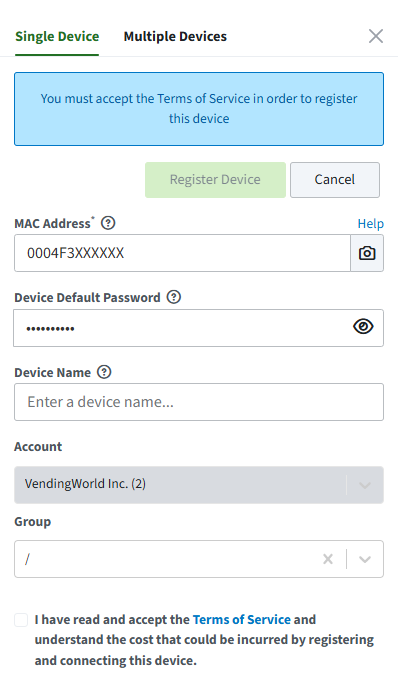
|
You can also register multiple devices to your account by importing them from a Comma Separated Values (CSV) file. For information about the available fields the CSV file accepts, see Create a CSV file to add multiple devices in the Digi Remote Manager documentation. To use this option, you must have registered at least one ConnectCore 95 device through single device registration and accepted the Terms of Service. Otherwise, the multiple device registration operation will fail. |
For more information, refer to the Digi Remote Manager User Guide.
Digi Remote Manager APIs
You must accept the Terms of Service before registering the device. Send an HTTP POST request:
POST https://remotemanager.digi.com/ws/v1/billing/terms/accept
Request body:
{
  "program_id": "ESSENTIAL_CCCS"
}| Terms of Service reading and acceptance is only required once per Digi Remote Manager account, regardless of the number of ConnectCore 95 devices registered. |
Follow these steps to provision devices programmatically using Digi Remote Manager REST APIs.
Step 1: Prepare the authentication header
Obtain an authentication token from Digi Remote Manager before making any requests. Use either Basic Authentication (username and password) or API Keys.
For Basic Authentication, include the Authorization header with your credentials encoded in Base64:
Authorization: Basic <base64-encoded-credentials>For API Keys authentication, create an API key in your Digi Remote Manager account and include the X-API-KEY-ID and X-API-KEY-SECRET headers:
X-API-KEY-ID: <your-api-key-id>
X-API-KEY-SECRET: <your-api-key-secret>
Step 2: Prepare the request body
Create a JSON object that lists the device or devices you want to provision. The request body must follow this format:
{
  "devices": [
    {
      "mac": "0004F3XXXXXX",
      "install_code": "123456789012"
    },
    {
      "mac": "0004F3YYYYYY",
      "install_code": "123456789012"
    }
  ]
}
Each device object must include the mac field with the device’s MAC address.
The install_code field is only needed if the device requires an install code for provisioning, which matches the default device password.
| For more information on the available fields, refer to Digi Remote Manager API Reference |
Step 3: Send the provisioning request
Set up the request by configuring the authentication header and request body. Then, send an HTTP POST request to Digi Remote Manager using the following endpoint:
POST https://remotemanager.digi.com/ws/v1/devices?bundle_device=trueStep 4: Handle the response
Review the response to verify the provisioning results. The response contains a list of devices and their provisioning status following this format:
{
    "count": 2,
    "list": [
        {
            "error_status": 403,
            "error_message": "Invalid access to data - it is not owned by this customer.",
            "error_context": {
                "customer_id": 352,
                "id": "00000000-00000000-0004F3FF-FFXXXXXX",
                "mac": "0004F3XXXXXX",
                "in_maintenance_window": "yes",
                "authenticated_connection": false
            }
        },
        {
            "channels_uri": "/ws/v1/devices/channels/00000000-00000000-0004F3FF-FFYYYYYY",
            "metrics_uri": "/ws/v1/devices/metrics/00000000-00000000-0004F3FF-FFYYYYYY",
            "customer_id": 352,
            "type": " ",
            "connection_status": "disconnected",
            "id": "00000000-00000000-0004F3FF-FFYYYYYY",
            "mac": "0004F3YYYYYY",
            "restricted_status": "unrestricted",
            "maintenance_mode": "off",
            "firmware_status": "not_identified",
            "health_status": "unknown",
            "in_maintenance_window": "yes",
            "authenticated_connection": false,
            "management_uri": "/ws/v1/devices/management/00000000-00000000-0004F3FF-FFYYYYYY"
        }
    ]
}
