


The Remote HMI demo demonstrates how to use an XBee device to provide BLE connectivity to hardware that lacks a built-in Human-Machine Interface (HMI).
This setup is ideal for scenarios requiring remote monitoring and control of hardware, such as in industrial automation or home automation systems.
Demo explanation
In this demo, the XBee module is attached to an XBIB-C development board, which does not have its own HMI. The XBee device enables the board to communicate with a smartphone via BLE, allowing the smartphone to function as a remote HMI.
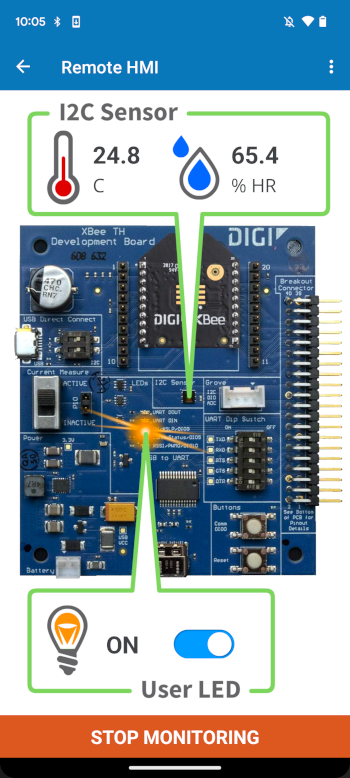
The Digi XBee Mobile application connects with the XBee device to monitor temperature and humidity readings from the I2C sensor on the board and to control the status of the board’s User LED.
Execute the demo
The Remote HMI home page includes a diagram of the demo, a short description and the steps required to test the demo.
Follow these instructions to execute the Remote HMI demo:
-
Apply the Remote HMI Quick Setup to your XBee module using XBee Studio. For more information about Quick Setups and how to apply them, refer to the Quick Setup chapter of the XBee Studio User Guide.
-
Tap the Select device button in Step 2 (Select the device). The Remote HMI - Device list page displays.
-
Wait for your XBee device to appear in the list (it should display as XBee_Remote_HMI_XXXX) and select it.
-
Enter the password (1234 by default) and wait for the application to connect. The Remote HMI - Main page displays. Verify that:
-
Temperature and humidity values are updated automatically every 5 seconds.
-
-
Toggle the LED switch control several times and verify that the User LED on the XBIB-C board turns on and off accordingly.
-
Tap the STOP MONITORING button. Verify that:
-
The button text changes to START MONITORING.
-
The button background changes to green.
-
Temperature and humidity values are no longer refreshed.
-
-
Tap the START MONITORING button. Verify that:
-
The button text changes to STOP MONITORING.
-
The button background changes to red.
-
Temperature and humidity values are updated automatically every 5 seconds.
-
