


The XBee Beacon Advertise demo demonstrates how to use an XBee device to broadcast custom BLE data, including sensor readings from the I2C sensor on the XBIB-C development board.
This demo is particularly useful for applications that require proximity-based data dissemination, such as environmental monitoring, asset tracking, and other IoT use cases.
Demo explanation
In this demo, the XBee device functions as a BLE beacon, continuously advertising data from the I2C sensor on the XBIB-C board it is attached to. Nearby BLE-enabled devices can pick up this broadcasted data.
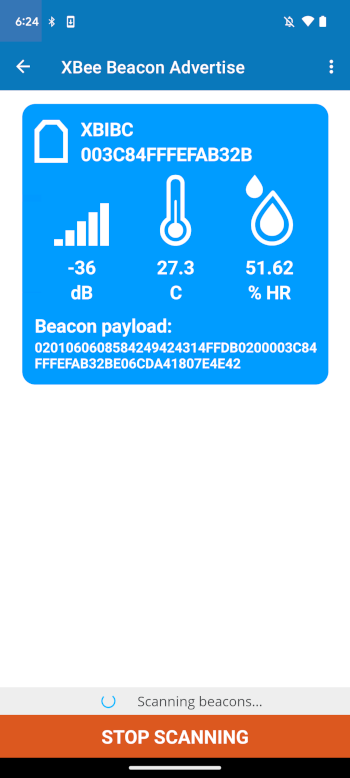
Without needing to establish a connection with the XBee device, the Digi XBee Mobile application scans for and extracts this custom data, displaying it in real-time in a card format.
Execute the demo
The XBee Beacon Advertise home page includes a diagram of the demo, a short description and the steps required to test the demo.
Follow these instructions to execute the XBee Beacon Advertise demo:
-
Apply the XBee Beacon Advertise Quick Setup to your XBee module using XBee Studio. For more information about Quick Setups and how to apply them, refer to the Quick Setup chapter of the XBee Studio User Guide.
-
Tap the Start scanning button in Step 2 (Scan for beacon frames). The XBee Beacon Advertise - Main page displays.
-
After a few seconds, the application should detect the custom BLE beacon generated by your XBee device and display its information in card format, including:
-
Name of the BLE beacon device.
-
Bluetooth address.
-
RSSI value.
-
Temperature value from the I2C sensor of the XBIB-C development board.
-
Humidity value from the I2C sensor of the XBIB-C development board.
-
Raw advertisement payload.
Information is continuously refreshed until you smartphone goes out of range with your XBee device.
-
-
Tap the STOP SCANNING button. Verify that:
-
The button text changes to START SCANNING.
-
The button background changes to green.
-
Beacon information is no longer refreshed.
-
-
Tap the START SCANNING button. Verify that:
-
The button text changes to STOP SCANNING.
-
The button background changes to red.
-
Beacon information is refreshed again.
-
