


Digi XBee Mobile app allows you to provision your XBee 3 devices and XBee Gateways in Digi Remote Manager to enable cloud-based management, monitoring, and control. Registering your device is essential to access all Digi Remote Manager features, including remote configuration, firmware updates, and real-time insights.
Step 1: Launch device provisioning
-
On the home page, tap Provision device.
-
Enter your Digi Remote Manager credentials.
-
Optionally, check the Remember credentials control to save your login information for future sessions.
-
Tap NEXT.
Step 2: Add devices
After logging in, an empty list of devices appears. Tap Add devices to choose how to add devices:
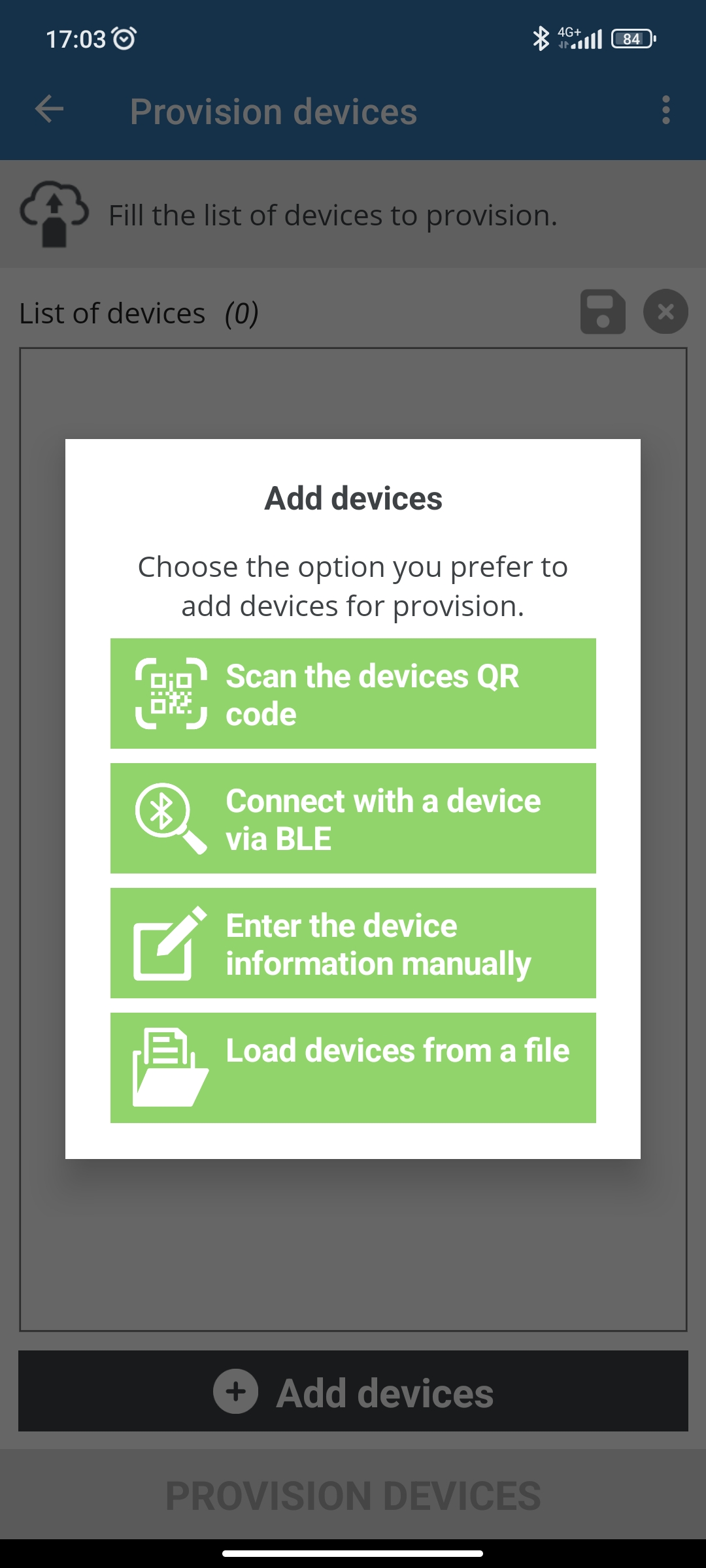
This page also allows you to save the list of devices in CSV format and clear it.
Scan the device’s QR code
-
Adjust the camera settings if needed, such as zoom and flashlight.
-
Point the camera at the device’s QR code.
-
Wait for the app to scan the code. Upon scanning:
-
The device vibrates and emits a sound.
-
A popup dialog confirms the scanned device.
-
The device is added to the list.
-
-
Repeat the process for additional devices.
-
Tap ADD DEVICES to move scanned devices to the provisioning list.
Connect with a device via BLE
-
Ensure the device is powered on and has the Bluetooth Low Energy (BLE) interface enabled and configured.
-
Wait until your device appears in the list.
-
Tap the device and enter the Bluetooth password.
Enter the device information manually
-
Enter the device IMEI or MAC address.
-
If the device has an install code, enter it.
-
Tap ADD DEVICE to add it to the provisioning list.
Load devices from a file
-
Select a CSV file from your device storage.
-
Ensure the file follows this format:
<DEVICE_ID_1>,<INSTALL_CODE_1> <DEVICE_ID_2>,<INSTALL_CODE_2> ... <DEVICE_ID_N>,<INSTALL_CODE_N> -
Load the file to populate the device list.
Step 3: Provision devices
-
Tap PROVISION DEVICES to register them in your Digi Remote Manager account.
| If provisioning fails, a popup displays failed devices and error messages. Successfully provisioned devices are removed from the list, while failed ones remain for further attempts. |
