


Follow these steps to set up your Wi-SUN Development Kit hardware:
1. Connect your XBee Hive Wi-SUN
-
Connect the Ethernet cable (not included) to the ETH Ethernet port.
-
Connect the RP-SMA antenna to the Wi-SUN antenna connector. Position the antenna for the best reception.
-
Connect DC power and power on the XBee Hive Wi-SUN.
The XBee Hive Wi-SUN is intended to be powered by a certified power supply with output rated at either 12 VDC/0.75 A or 24 VDC/0.375 A minimum.
-
Wait until Wi-SUN interface and service is running. Indicator LEDs blink to show status during startup:
-
The Power LED is solid blue as the device prepares to boot up.
-
When the Power LED turns to solid green, the XBee Hive Wi-SUN is ready.
-
Verify that the XBee LED shows either solid green, when Wi-SUN interface is running, or blinking green-cyan, for traffic in the Wi-SUN network.
-
2. Plug in the XBee Wi-SUN boards
Follow these steps to connect a XBee Wi-SUN device to a XBIB-C development board:
-
Plug one XBee Wi-SUN module into the XBIB-C development board.
Make sure the XBIB-C development board is NOT powered (either by the USB type-C or a battery) when you plug in the XBee Wi-SUN module. Align all XBee pins with the spring header and carefully push the module until it is hooked to the board.
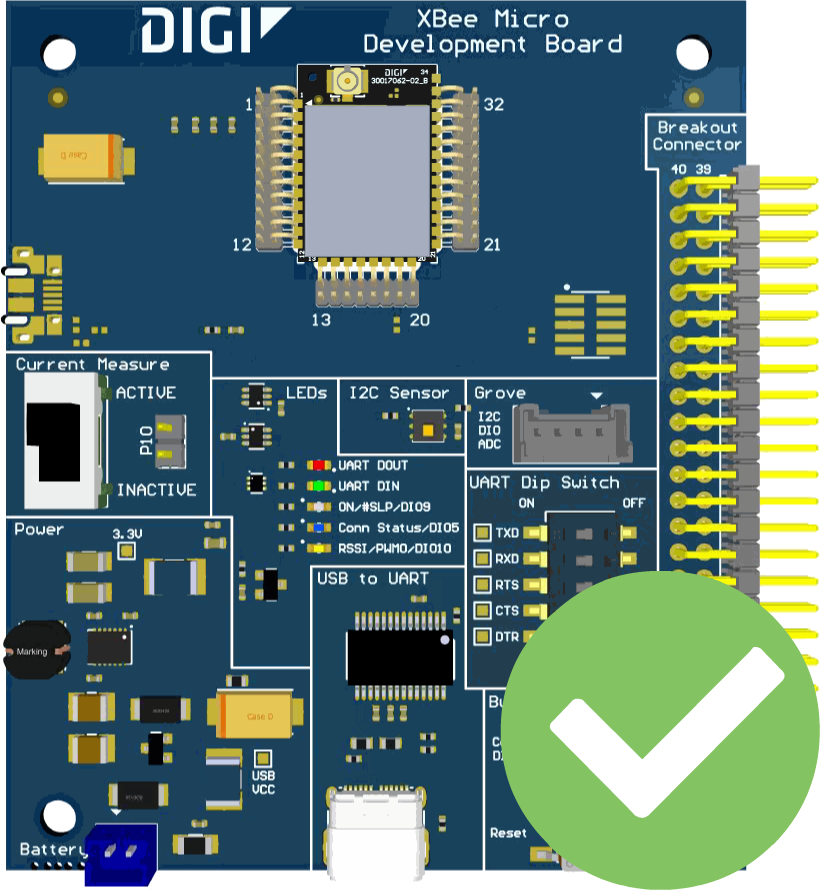
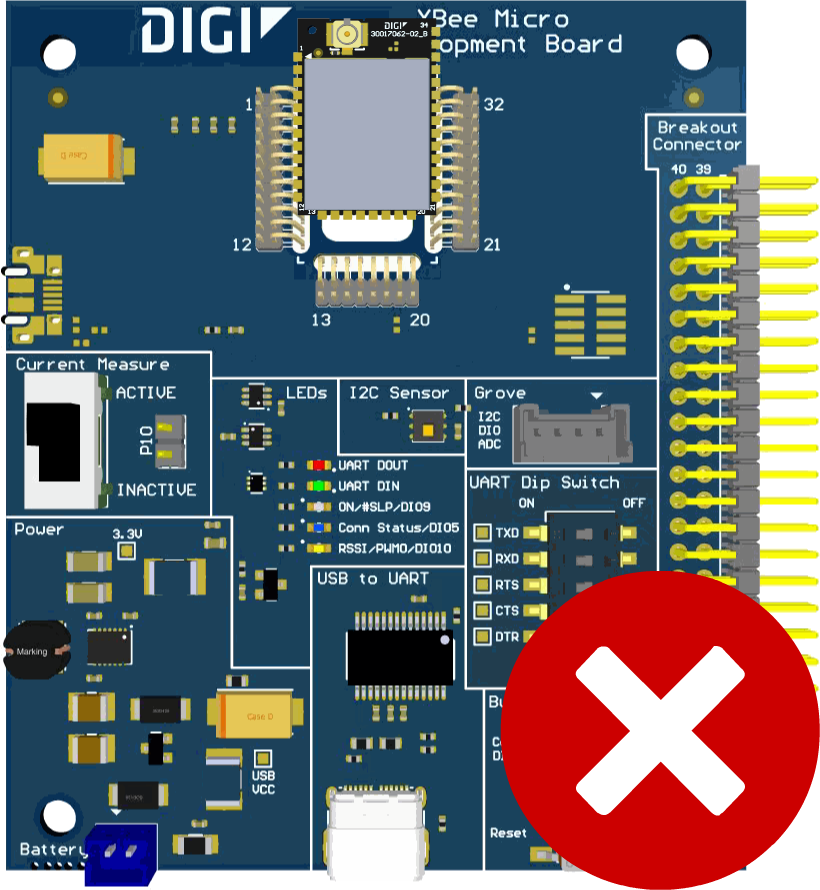
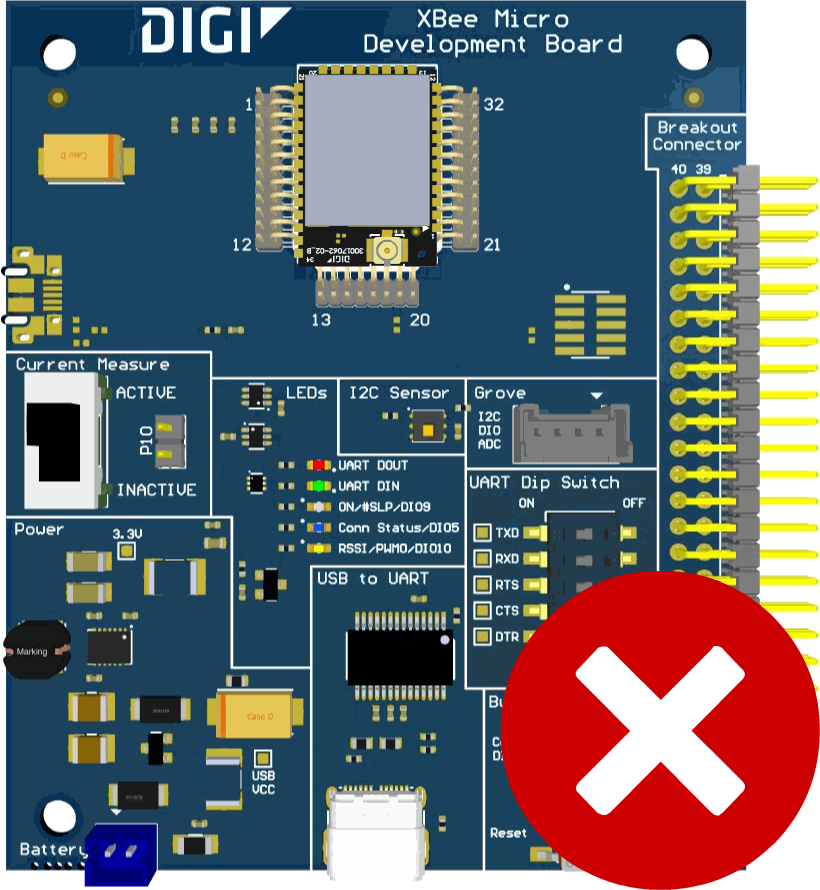
-
Connect each antenna to the antenna connector of the XBee Wi-SUN devices:
-
Turn the nut on the pigtail adapter (female RP-SMA) clockwise by hand to screw it onto the antenna’s male RP-SMA connector. Do not rotate the antenna itself, only turn the pigtail’s nut.
-
Tighten the connector until it is finger-tight.
-
Align the U.FL connector of the antenna with the U.FL female counterpart on the device.
-
Then, press down until you hear a click.
-
-
Once the XBee Wi-SUN module is plugged into the XBIB-C development board (and not before), connect the board to your computer using the USB type-C cables provided.
How to unplug an XBee device
To disconnect your XBee Wi-SUN device from the XBIB-C development board:
-
Disconnect the USB type-C cable (or the battery) from the board so it is not powered.
-
Remove the XBee Wi-SUN device from the board socket by pressing the device gently through the hole on the back of the board, being careful not to bend any pins.
Make sure the XBIB-C development board is NOT powered when you remove the XBee device.
