


The STM32MP25 processor provides a Digital Camera Memory Interface Pixel Processor (DCMIPP) sourced from a MIPI CSI-2 host controller.
Available camera interfaces
On the ConnectCore MP25 Development Kit:
-
MIPI CSI-2 camera port is available on a 22-pin FFC connector (two data lanes).
Camera connection
The BSP includes support for:
-
ST B-CAMS-IMX MIPI CSI-2 camera (Sony IMX335 sensor)
Connect ST B-CAMS-IMX camera
|
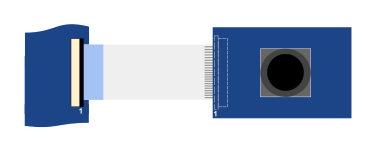
Ensure that the correct cable is used and properly oriented when connecting the MIPI camera to the ConnectCore MP25 Development Kit. Incorrect cable selection or improper orientation may cause permanent damage to the camera. |
For ConnectCore MP25 Development Kit, use a 22 pin, 0.5mm pitch FFC cable with contacts on top on one side, bottom on the other. Pin 1 of the ConnectCore MP25 Development Kit connector aligns with pin 1 of the camera connector.
Kernel configuration
You can manage the camera driver support and Video4Linux (V4L2) capture driver through the following kernel configuration options:
-
STM32 Digital Camera Memory Interface (DCMI) support (
CONFIG_VIDEO_STM32_DCMI) -
STM32 Digital Camera Memory Interface Pixel Processor (DCMIPP) support (
CONFIG_VIDEO_STM32_DCMIPP) -
STM32 Camera Serial Interface (CSI) support (
CONFIG_VIDEO_STM32_CSI) -
Sony IMX335 sensor support (
CONFIG_VIDEO_IMX335)
These options are enabled as modules and built-in on the default ConnectCore MP25 kernel configuration file.
Kernel driver
The drivers for the camera are located at:
| File | Description |
|---|---|
STM32 Digital Camera Memory Interface (DCMI) driver |
|
STM32 Digital Camera Memory Interface Pixel Processor (DCMIPP) driver |
|
STM32 Camera Serial Interface (CSI) support |
|
Sony IMX335 sensor driver |
Device tree bindings and customization
Common bindings for video receiver and transmitter interfaces are described at Documentation/devicetree/bindings/media/video-interfaces.yaml.
The device tree must contain entries for:
-
The V4L2 capture interface
-
The camera sensor
V4L2 capture interface (DCMIPP)
&csi {
	vdd-supply =  <&scmi_vddcore>;
	vdda18-supply = <&scmi_v1v8>;
	status = "okay";
	ports {
		#address-cells = <1>;
		#size-cells = <0>;
		port@0 {
			reg = <0>;
			csi_sink: endpoint {
				remote-endpoint = <&imx335_ep>;
				data-lanes = <0 1>;
				bus-type = <4>;
			};
		};
		port@1 {
			reg = <1>;
			csi_source: endpoint {
				remote-endpoint = <&dcmipp_0>;
			};
		};
	};
};

&dcmipp {
	status = "okay";
	port {
		dcmipp_0: endpoint {
			remote-endpoint = <&csi_source>;
			bus-type = <4>;
		};
	};
};
Sony IMX335 camera sensor (I2C1 slave)
&i2c1 {
...
	imx335: imx335@1a {
		compatible = "sony,imx335";
		reg = <0x1a>;
		clocks = <&clk_ext_camera>;
		reset-gpios = <&gpiog 7 (GPIO_ACTIVE_HIGH | GPIO_PUSH_PULL)>;
		powerdown-gpios = <&gpiof 3 (GPIO_ACTIVE_HIGH | GPIO_PUSH_PULL)>;
		status = "okay";

		port {
			imx335_ep: endpoint {
				remote-endpoint = <&csi_sink>;
				clock-lanes = <0>;
				data-lanes = <1 2>;
				link-frequencies = /bits/ 64 <594000000>;
			};
		};
	};
...
};
Use the camera
The system uses the libcamera framework directly, so no manual media link configuration is required.
Preview a camera image using gstreamer
To get a camera preview at a given resolution:
# gst-launch-1.0 libcamerasrc ! video/x-raw,width=640,height=480,format=YUY2 ! queue ! autovideosinkTake a picture with the camera using gstreamer
To take a picture:
# gst-launch-1.0 -e libcamerasrc src::stream-role=video-recording ! queue ! video/x-raw,width=640,height=480,format=NV12 ! identity eos-after=30 ! jpegenc ! multifilesink location=sample.jpg max-files=1| The command takes 30 frames but only saves the last. Discarding the first 29 eliminates undesired frames on cameras that have auto-exposure. |
To show the captured image using gstreamer:
# gst-launch-1.0 filesrc location=sample.jpg ! jpegdec ! imagefreeze ! waylandsinkYou can also show the captured image with:
# weston-image sample.jpgRecord a video with the camera using gstreamer
To record a 10 second video:
# timeout -s INT 10 gst-launch-1.0 -e libcamerasrc src::stream-role=video-recording ! video/x-raw,width=1920,height=1080,format=NV12 ! videoconvert ! queue ! v4l2slh264enc ! h264parse ! mp4mux ! filesink location=sample.mp4To play the recorded video:
# gst-launch-1.0 playbin uri=file:///root/sample.mp4
