Replace the SIM card and change the cellular network settings from the web UI
Each Connect Sensor has a SIM card supplied by Digi installed by default, but you can choose to replace the Digi-supplied SIM card with your own SIM card. If you do, you need to configure the device so that it can connect to the carrier's cellular network.
If any information from the SIM card carrier is not correctly applied, the device will no longer connect to Digi Axess.
Before you begin
You will need the following items:
-
SIM card: Make sure you have the SIM card you want to insert into the device.
-
Small tool: You will need a small tool to push the access tab next to the SIM slot.
-
Magnet: You will need a magnet to manually wake the device.
You should have these items prepared:
-
The new SIM card must be activated.
-
Make sure you have the APN and additional information from the carrier about the SIM card you want to insert into the device.
-
You must be physically close enough to the device to wake it with the magnet and replace the SIM card.
Step 1: Configure the device for the new SIM card
In this step, you will configure the device with the information for the new carrier in Digi Axess.
-
Make sure that the SIM card supplied by Digi is inserted into the device. You will replace the existing SIM card with your own in a later step.
-
Access the web UI for Connect Sensor from the Device Summary page. The Automation Dashboard displays.
-
Choose Physical I/O > Cellular. The Cellular Configuration page displays.
-
Click Edit.
-
From the Profile name section, define the APN name.
-
Choose Define Name.
-
In the field provided, enter the APN name.
-
-
If your carrier requires additional APN access information, specify the following information. Otherwise, you can skip this step.
-
Username: Enter the user name associated with the APN.
-
Password section: Select Update Password. Enter the new password in the New Password field, and then enter the same password in the Confirm Password field.
-
Pin section: Select Update Pin. Enter the new PIN in the New Pin field, and then enter the same PIN in the Confirm Pin field
-
-
In the Mtu field, enter the largest PDU that can be communicated.
-
Click Update to save the changes.
Step 2: Wake the device
In this step, you will wake the Connect Sensor with a magnet, which ensures that the device is updated with the new configuration.
-
Make sure you are physically close to the device.
-
Manually wake the Connect Sensor with the magnet.
-
When the device wakes up and has connected to the cellular network, the SIM card LED is solid green. The device automatically connects to Digi Axess and any configuration changes are applied to the device.
-
When the updates are complete and the Connect Sensor is asleep, continue to Step 3.
Step 3: Install your new SIM card
In this step you will remove the existing SIM card and insert the new one.
Note Retain the Digi-supplied SIM card, in case you need to reset the device to the default configuration.
-
Orient the Connect Sensor so the top of the device is facing you.
-
If your device has a NEMA case, open the case.
-
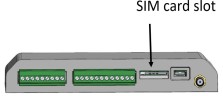
Locate the SIM card slot.
-
Use your tool to push the existing SIM card into the slot. The SIM card will pop out.
-
Remove the existing SIM card and retain it in a safe place.
-
Insert your new SIM card into the SIM card slot. Match the chamfered corner of the SIM card to the chamfered corner of the slot.
-
Use your tool to push the SIM card into the slot.
-
If your device has a NEMA case, close the case.
-
Continue to Step 4.
Step 4: Verify that the Connect Sensor can connect to Digi Axess
In this step, you will verify that the device has been configured correctly by making sure the device can connect to Digi Axess.
-
Connect to Digi Axess and update the configuration on the Connect Sensor.
-
Manually wake the Connect Sensor with the magnet.
-
When the device wakes up, it connects to Digi Axess and applies any configuration changes.
-
When the updates are complete and the Connect Sensor is asleep, continue to the next step.
-
-
Find the updated device using one of the following methods.
-
Use the Search Devices field in the toolbar to find the device that you just updated. You can search by serial number or location name.
-
Click on the device's location pin in the map.
-
Select the device from the list of mapped devices.
-
Display the devices in the table format and search for the device.
-
 PDF
PDF


