Configure your device to use custom default settings after a device reset
You can configure your device to use the custom default settings specified in a bin file after triggering a Config Reset.
Tip A device will not use the custom default settings specified in a bin file if you trigger a Factory Reset. This does not work because the bin file is deleted as part of that process.
Required configuration items
-
Custom factory default configuration (bin) file, if not already available

Web
-
Log into the AnywhereUSB Plus WebUI as a user with full Admin access rights.
- Configure your AnywhereUSB Plus device to match the desired custom factory default settings.
For example, you may want to configure the device to use a custom APN or a particular network configuration, so that when you reset the device to factory defaults, it will automatically have your required network configuration.
-
On the main menu, click System. Under Configuration, click Configuration Maintenance.
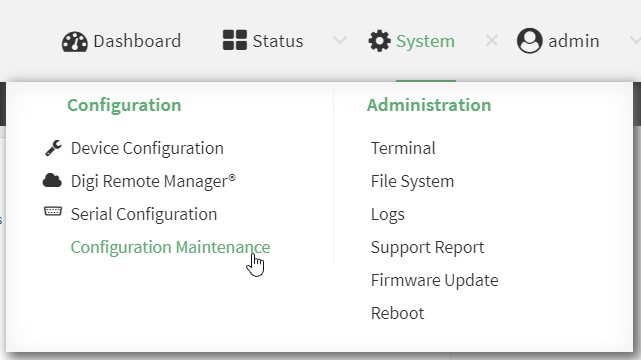
The Configuration Maintenance windows is displayed.
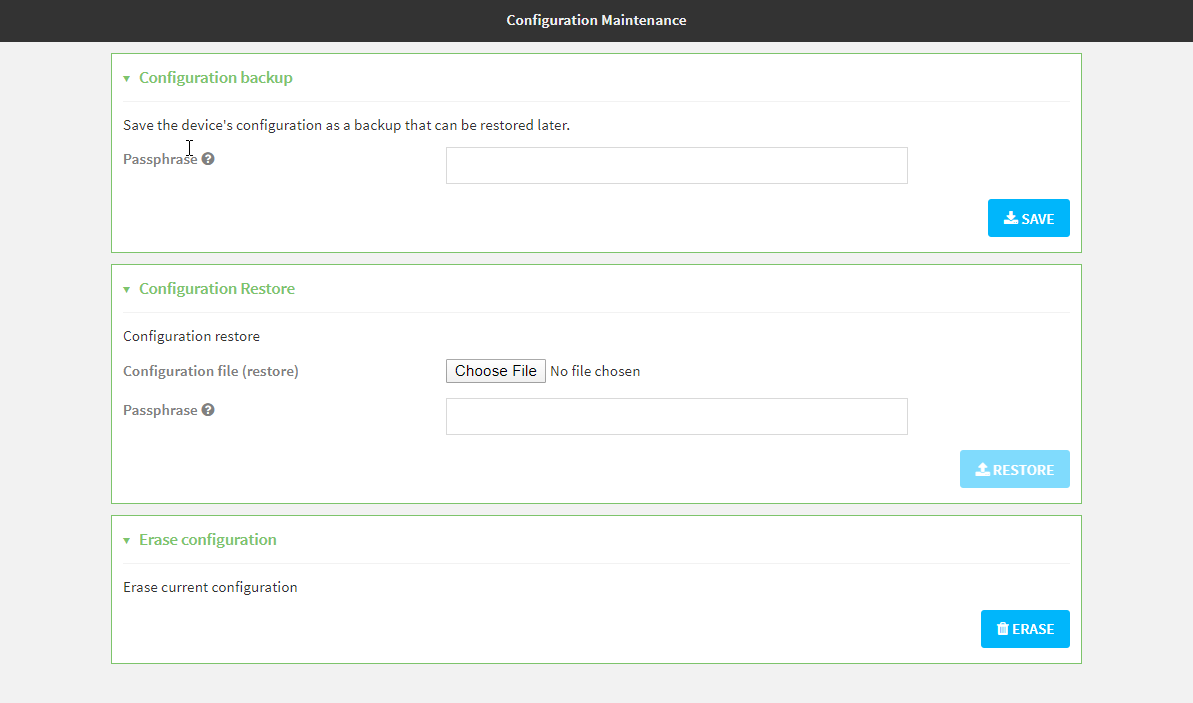
- In the Configuration backup section, click SAVE.

Do not set a Passphrase for the configuration backup. The file will be downloaded using your browser's standard download process.
- After the configuration backup file has been downloaded, rename the file to:
custom-default-config.bin
- Upload the file to the device:
From the main menu, select System > Filesystem.
Under Default device configuration, click .
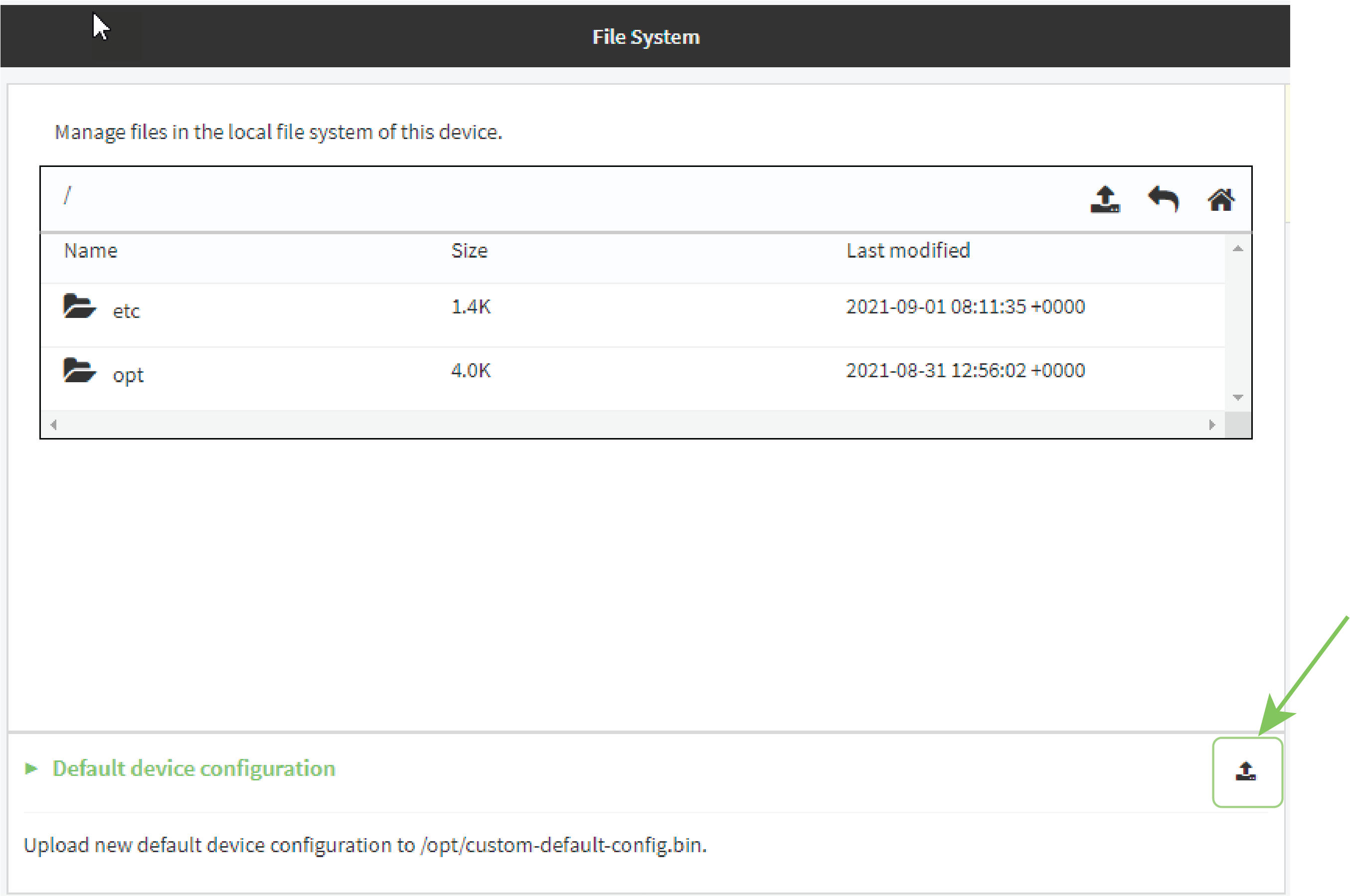
Select the file from your local file system.
-
Reboot your device.
The device will reboot using the custom factory default settings specified in the bin file.
Note After configuring a device to use custom factory default settings, wait five minutes after restoring to defaults before powering off the device or triggering a device reset.
If you do not wait five minutes after rebooting the device to use the custom factory defaults in the bin file, the reset process will delete the file and the device will use the standard factory default settings.
Command line
- Select the device in Remote Manager and click Actions > Open Console, or log into the AnywhereUSB Plus local command line as a user with full Admin access rights.
Depending on your device configuration, you may be presented with an Access selection menu. Type admin to access the Admin CLI.
- The table below lists the available commands.
Commands Description system custom-default-config file [file name]
Set the file you specify as the custom factory default configuration file (custom-default-config.bin). The SHA file is also created.
Where filename is the name of the file created using the system backup command.
system custom-default-config current
Save the current configuration as a custom-default-config.bin file. The SHA file is also created.
system custom-default-config remove Remove the custom-default-config.bin and SHA files.
- Type exit to exit the Admin CLI.
Depending on your device configuration, you may be presented with an Access selection menu. Type quit to disconnect from the device.
Note After configuring a device to use custom factory default settings, wait five minutes after restoring to defaults before powering off the device or triggering a device reset.
If you do not wait five minutes after rebooting the device to use the custom factory defaults in the bin file, the reset process will delete the file and the device will use the standard factory default settings.
 PDF
PDF


