Templates

Use Templates to automatically manage device firmware, settings, and files. For example, you can automatically provision or update multiple devices with one common configuration which includes firmware, settings, and file systems. In addition to the common settings included in a configuration, you can provide site-specific settings to override one or more settings.

From the main menu click Templates.
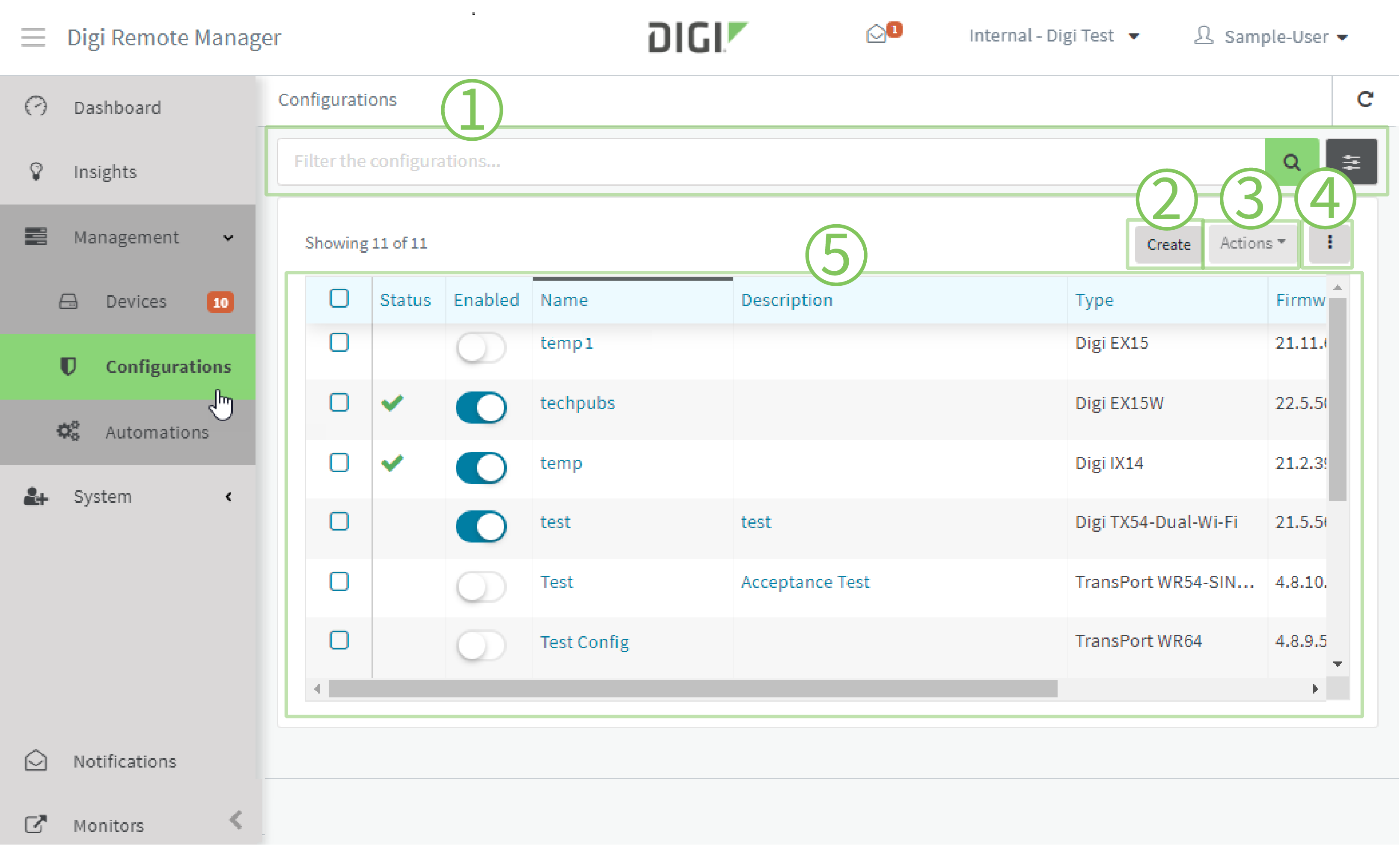
# Component Description
1 Templates filter
  • Click    to toggle between basic (keyword) search and advanced filtering.

    • Basic search: Type a word to search for.

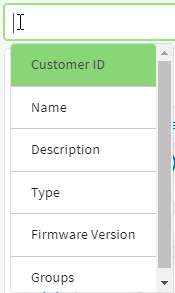
    • Advanced filtering: click in the filter bar to select a filtering category:

  • Click    to filter the display.

  • Click to clear the filter criteria.

2 Create button

See Create a template.

3 Actions menu

Accessible only when a configuration has been selected.

  • Edit — Edit the configuration.

  • Delete — Delete the configuration.

  • Scan Now — Scan the devices associated with the configuration for compliance with the configuration. If Remediate is selected for the configuration (see Create a template), non-compliant devices will be updated to be compliant.

  • Copy — Copy the configuration.

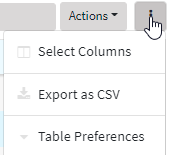
4 Customize display menu

Click to customize the display.

  • Click Select Columns to open a list of columns.

    • Click to select the columns that will be displayed in the device list.

    • Click and select whether to send the column to the top or bottom of the list.

    • Click to reorder the listing by dragging and dropping a column.

    • Click Use Defaults to return to the default display.

    • Click Close when finished.

  • Click Export as CSV to export a list of the devices in CSV format.

  • Click Table Preferences to set your table view preferences:

    • Click Table Spacing to select Compact, Comfy, or Roomy spacing.

    • Click Device ID to determine how to display the Device ID, either Friendly (shorter) or Full. (This table preference is not applicable for the Templates table.)

5 Templates list
  • Click to select a configuration.

  • Click a configuration Name or Description to display status and configuration information. Click a menu item at the bottom of the display to edit the configuration.


This chapter contains the following topics: