Step 4: Register the device
Your Connect Sensor XRT-M NEMA must be registered with Digi Axess so that you can access the device in Digi Axess and map its location.
Before you begin
You will need the serial number or IMEI for the device. This information is on the label on the back of the device.
To register your device:
-
Log in to a device's web UI from Digi Axess.
-
Navigate to digiaxess.com in your web browser.
-
Click Login. The Digi Axess Log In page displays.
-
Enter your user name and password.
-
User name: Enter the user name for your Digi Axess account. Verify the user name with your system administrator.
-
Password: Enter the password for your Digi Axess account.
-
-
Click Submit to log in to Digi Axess.
Note If you have multi-factor authentication enabled, you must log in using MFA.
-
The Digi Axess update banner displays, on top of the Digi Axess map. If the banner does not display, it has been ignored in a previous session.
-
Click Don't Show Again to permanently turn off the banner.
-
Click Ignore to close the banner.
-
-
Access the Digi Axess Register Device page.
-
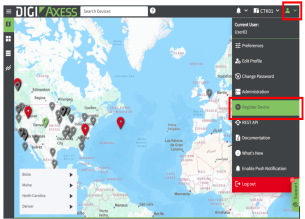
In the toolbar, click the down arrow next to the user profile icon. The Account menu displays.
-
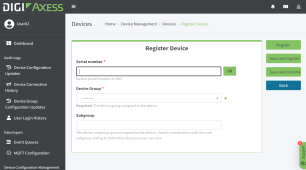
Click Register Device. The Register Device page displays.
-
-
In the Serial Number field, enter the unique identifier for the device. You can enter the device's serial number or IMEI. As an alternative, click the Scan Barcode button next to the field and use a camera or a saved image to enter an identifier.
Note The serial number and IMEI are on the label on the back of the device.
-
From the Device Group list box, select a device group from the drop-down list.
For initial registration, normally only one device group is available as a default. If more than one is available, contact your system administrator to determine which group you should select.
-
(Optional) In the Subgroup field, enter a subgroup name.
-
Click Register. The Set Device Location Source page displays.
-
Name and define the device's physical location.
-
By default, the device's serial number displays in the Location Name field. If desired, you can type over the default entry and enter a descriptive name for the device's physical location.
-
Select a Location Source option, which defines the method used to configure the physical location for the device.
- None: No physical location is defined. The device is unmapped and won't appear on the Digi Axess map. You can specify a location at a later time.
-
Manual: Manually enter the latitude and longitude of the physical location of the device.
-
GPS: The physical location is determined by the device's internal GPS. The location is updated the next time the device wakes and connects to Digi Axess.
-
Click Set to save your changes. The Set Device Configuration page displays.
-
In the Set Device Configuration page, from the Choose a Configuration list box, select an initial configuration for the device.
-
Demo Configuration: This is the default configuration, and displays basic information in the Device Summary page: Analog in Voltage, Digital in, and Case Temperature.
-
Blank Configuration: No data displays. You must manually configure the device in the device's Administration page.
-
Saved Configuration: Select a configuration that you have previously created and saved. The configuration is applied to this device.
-
-
Click Set to save your change.
-
You can wake the Connect Sensor XRT-M NEMA and verify the device registration.
NEXT STEP: Proceed to Step 5: Verify Connect Sensor XRT-M NEMA registration.
 PDF
PDF


