Install the OpenVPN Connect client on your computer: Windows OS
You can download and install the OpenVPN Connect client on a computer that has a Windows OS. During this process, you will also create a user profile, which enables you to log into Digi Axess and review the devices that are registered with Digi Axess.
Note You can install the OpenVPN Connect client on computers with other operating systems, such as MacOS, Linux, Android, iOS, and ChromeOS. Please visit OpenVPN for more information: https://openvpn.net/client/
Before you begin
You will need:
-
The URL for Digi Axess: https://digiaxess.com
-
Your Digi Axess user name and password log in credentials.
To install the OpenVPN Connect client on your computer:
-
On your computer, navigate to: https://openvpn.net/client/
-
Click the Download.msi button to download the installation file.
-
Navigate to the downloaded file.
-
Double-click the downloaded file. The OpenVPN Connect Setup wizard displays.
-
In the wizard, click Next. The next page displays.
-
Review the license agreement. When finished, click I accept the terms in the License Agreement.
-
Click Next.
-
Click Install to start the installation process.
-
When complete, click Finish. The OpenVPN Connect client displays.
-
-
In the OpenVPN Connect client, review the data collection and retention statement. Click Agree. The Get connected page displays.
-
In the Enter your URL or Cloud ID field, enter: https://digiaxess.com
-
Click Continue. The Import Profile page displays.
-
In the Username and Password fields, enter your log in credentials for Digi Axess.
-
Click the Connect after import option.
-
Click the Import button. The Enter password dialog displays.
-
Re-enter your Digi Axess password in the Enter password dialog and click Enter.
-
-
The Missing external certificate page displays. You do not need a certificate, so click Cancel. The OpenVPN Connect page displays.
-
Configure the OpenVPN Connect client to disable the certificate option and save your Digi Axess password.
-
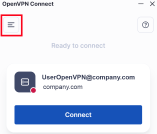
Click the menu icon to display the menu options.
-
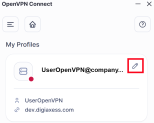
Click the My Profiles menu option. The My Profiles page displays.
-
Click the edit icon next to the user profile you just created. The user profile settings display.
-
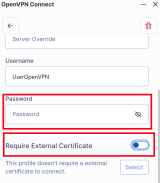
Scroll down until you can see the Password field and the Require External Certificate option.
-
In the Password field, enter your Digi Axess password. This ensures that you do not have to enter it every time you launch the client.
-
De-select the Require External Certificate option if it is selected.
-
Click Save Changes.
-
-
The OpenVPN Connect page displays and shows that you are ready to connect.
 PDF
PDF


