Services used to discover a device when connected to a network
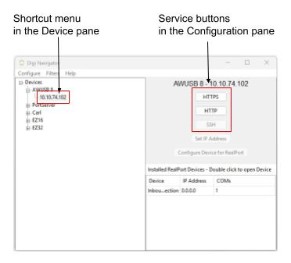
To discover the IP address for a Digi device connected to your network, the Digi Navigator uses the HTTPS service by default. Other services can be used, if needed.
You can configure which service options that display in the Configuration pane in the Digi Navigator.
-
Make sure Digi Navigator is installed and the Connect EZ 2 is powered and connected to your local network or to your computer with an Ethernet cable.
-
Launch the Digi Navigator.
-
Click Filters > Services from the toolbar to display the service options: HTTPS, HTTP, and SSH.
-
Click on service option to select it or deselect it. A check mark displays next to a selected option. To ensure that you can communicate with your device, at least one option should be selected.
-
The selected service options are included in the Configuration pane and by right-clicking on an IP address in the Device pane. Click a service option to use that service to log in to the device.
 PDF


