Use Digi Navigator to access your device's web UI
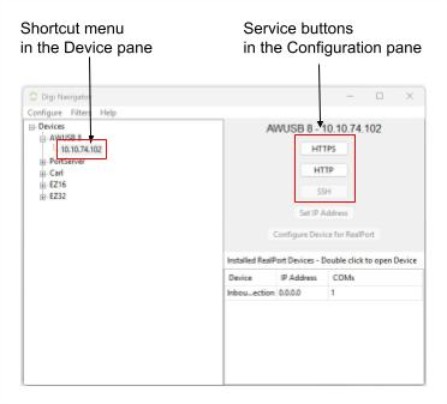
You can access a device's web UI from the Digi Navigatorby selecting an IP address in the Devicepane and then clicking a service button: HTTPS, HTTP, orSSH.
To access a device's web UI:
-
Make sure Digi Navigator is installed and the Connect EZ 2 is powered and connected to your local network or to your computer with an Ethernet cable.
-
Launch the Digi Navigator.
-
A list of devices displays in the Digi Navigator. This list includes the devices discovered by Digi Navigatorplus any devices that are in Digi Navigator's list of known devices. For information about how devices are discovered and how to add a device to the list, see Digi Navigator device discovery process.
-
In the Devicepane, find the device that you want to access and expand it to display the IP addresses for the device.
-
Click on an IP address. The service button options for the device and the device name display in the Configurationpane.
-
Launch the web UI for the device using one of the following methods:
-
In the Devicepane, right-click on an IP address to display the activated service options in the shortcut menu.
-
In the Configurationpane, click on an IP address to display the activated service button(s).
-
-
Click on any of the service options to access the web UI and log in: HTTP, HTTPS, SSH.
 PDF


