The internal GNSS module is enabled by default. You can disable it, or you can enable it if it has been disabled.
You can also configure Untethered Dead Reckoning (UDR), which is used to calculate the device's location when the satellite location is weak, as well as:
-
Automatic attenuation, which estimates and compensates for the signal attenuation.
-
Minimum satellite signal level.
-
Minimum and maximum number of satellites
Note In order for the internal GNSS module to be able to provide location information, you must connect an antenna to the GNSS antenna connector.
Web
- Log into Digi Remote Manager, or log into the local Web UI as a user with full Admin access rights.
- Access the device configuration:
 Remote Manager:
- Locate your device as described in Use Digi Remote Manager to view and manage your device.
- Click the Device ID.
- Click Settings.
- Click to expand Config.
Local Web UI:- On the menu, click System. Under Configuration, click Device Configuration.

The Configuration window is displayed.
- Click Services > Location > Location sources > gnss.
- (Optional) Type a Label for the GNSS location source.
- For Type of location source, leave the selection at GNSS.
- Click Enable the location source to disable the internal GNSS module, or to enable it if it has been disabled.
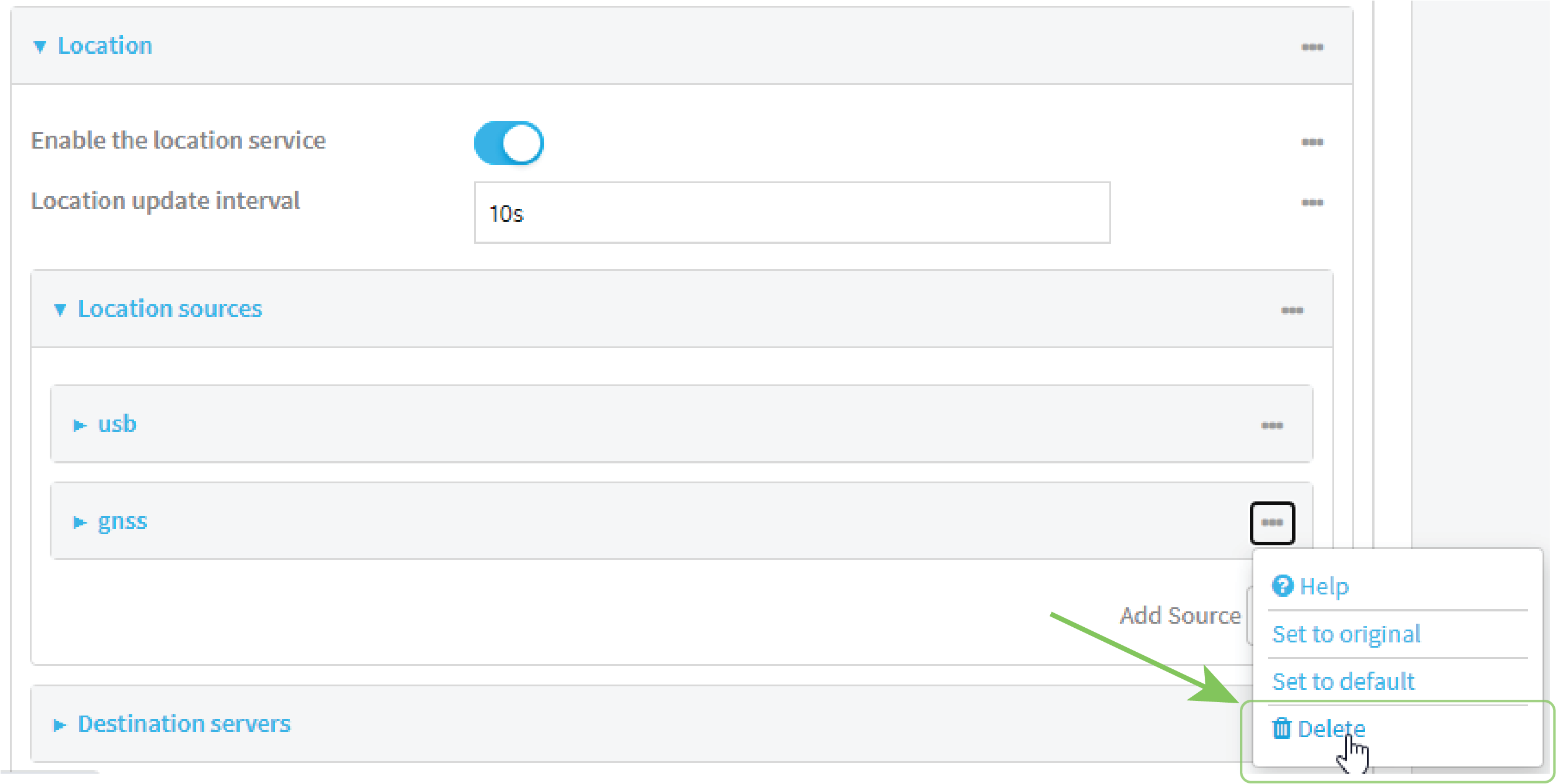
- Click the menu icon (...) next to the gnss location source
- Click Delete.
- (Optional) Click Enable UDR to configure the device to use Untethered Dead Reckoning (UDR)
- Automatic attenuation is enabled by default. Click to toggle Enable automatic attenuation to disable.
- Type the Minimum satellite signal level for navigation. Allowed values are 1through 6. The default is 6.
- Type the Minimum number of satellites for navigation. Allowed values are 1 through 12. The default is 3.
- Type the Maximum number of satellites for navigation. Allowed values are 3 through 24. The default is 18.
- Click Apply to save the configuration and apply the change.
Alternatively, you can also delete the gnss location source:
Command line
- Select the device in Remote Manager and click Actions > Open Console, or log into the TX64-Rail local command line as a user with full Admin access rights.
Depending on your device configuration, you may be presented with an Access selection menu. Type admin to access the Admin CLI.
- At the command line, type config to enter configuration mode:
> config
(config)>
- Enable or disable the GNSS module:
- Use the show command to determine the index number of the GNSS location source:
(config)> show service location source
0
	enable true
	no label
	type usb
1
	enable true
	no label
	type gnss
(config)>
- Use the index number to enable or disable the module:
- To enable the module:
(config)> service location source 1 enable true
(config)>
- To disable the module:
(config)> service location source 1 enable false
(config)>
Alternatively, you can use the index number to delete the DNSS location source:
(config)> del service location 1
(config)>
- To enable the module:
- Use the show command to determine the index number of the GNSS location source:
-
(Optional) Set a label for this location source:
(config)> service location source 1 label "label"
(config)>
- (Optional) Set the device to use Untethered Dead Reckoning (UDR):
(config)> enable_udr true
(config)>
- Automatic attenuation is enabled by default. To disable:
(config)> service location source 1 enable_attenuation false
(config)>
- Set the minimum satellite signal level for navigation:
(config)> service location source 1 min_cno int
(config)>
Where int is an integer between 1 and 6. The default is 6.
- Set the minimum number of satellites for navigation:
(config)> service location source 1 min_satellites int
(config)>
Where int is an integer between 1 and 12. The default is 3.
- Set the maximum number of satellites for navigation:
(config)> service location source 1 max_satellites int
(config)>
Where int is an integer between 3 and 24. The default is 18.
- Save the configuration and apply the change.
(config)> save Configuration saved. > - Type exit to exit the Admin CLI.
Depending on your device configuration, you may be presented with an Access selection menu. Type quit to disconnect from the device.
 PDF
PDF


