Build and run the project
Once you have written your Python/MicroPython application or imported an existing sample, you can run and test it in a Digi device.
Requirements
Before running your application, make sure your computer can communicate with the target device:
-
If your device is an XBee 3 RF Module—Zigbee, DigiMesh or 802.15.4—it must be physically attached to your computer.
-
If your device is an XBee 3 Cellular Modem, it can be either physically attached to your computer or added to your Digi Remote Manager account.
Note If you want to use a device connected to Digi Remote Manager, you need to add your Digi Remote Manager account in Digi > Digi Remote Manager Accounts if not previously done.
-
If your device is not an XBee, it must have the SSH service enabled and be on the same network as the computer.
Device selection and run
- Click Run
 on the Navigation bar, or right-click the project folder and choose Run '<project_name>'. The Python/MicroPython source files build automatically.
 - If you have not selected your device before, choose first one of the available categories for your project type:
Local PC. It includes all XBee devices that are directly attached to your computer. This option only appears when working with MicroPython projects.
Digi Remote Manager. It includes all XBee 3 Cellular devices that are added to any of the configured Digi Remote Manager accounts. This option only appears when working with MicroPython projects for XBee Cellular devices and if you have configured at least one Digi Remote Manager account.
LAN XBee Gateways. It includes all XBee Gateways that are on the same local network as your computer. This option only appears when working with Python projects.
-
Click OK. The plugin starts the search of Digi devices.
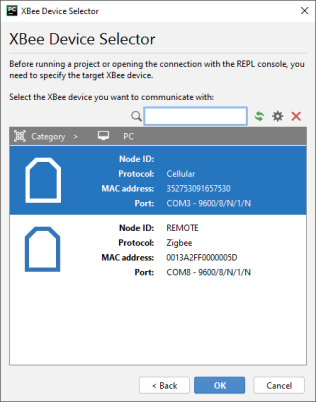
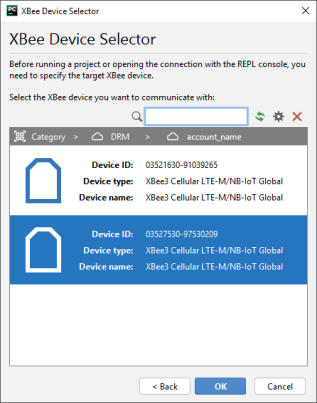
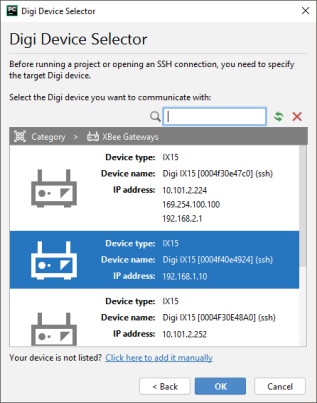
Note If your device does not appear on the list:
- If your XBee device has a special serial port configuration, click Discovery settings
 and specify its serial configuration.
 - For other Digi devices:
- Ensure that your device has the mDNS service enabled and is on the same network as the computer.
- Or click the link Click here to add it manually to specify its IP address, port, username, and password.
-
Depending on the type of your project, do the following:
-
MicroPython: If the selected XBee device is not working in MicroPython mode, a dialog asks you to enable it in order to improve the user experience.
We highly recommend doing this in test phase and when your application prints output in the console. -
Python: If you did not enter the device credentials, a dialog asks you to enter them. Type the device user and password and click OK.
-
Note If your Digi device requires credentials for the connection and you want PyCharm to remember them, select the Remember user and password option and make sure PyCharm has enabled the passwords storage in Preferences > Appearance & Behavior > System Settings > Passwords.
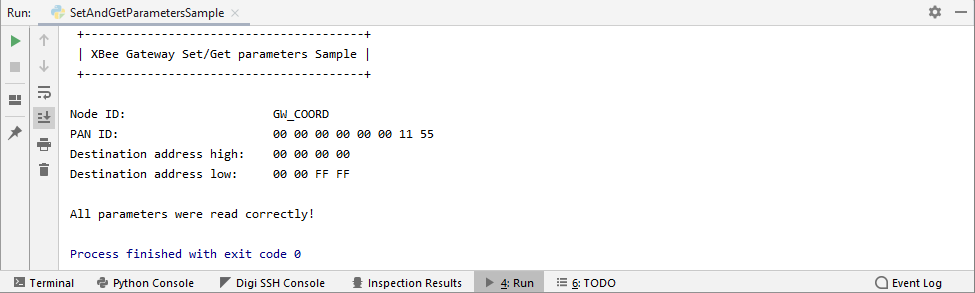
- The Python/MicroPython application is uploaded to the selected device and executed automatically.
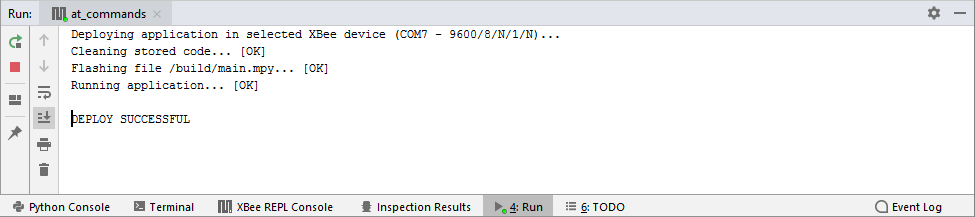
For MicroPython projects, if the XBee device is in MicroPython mode and the application prints any message in the console, you can see it in the XBee REPL Console.
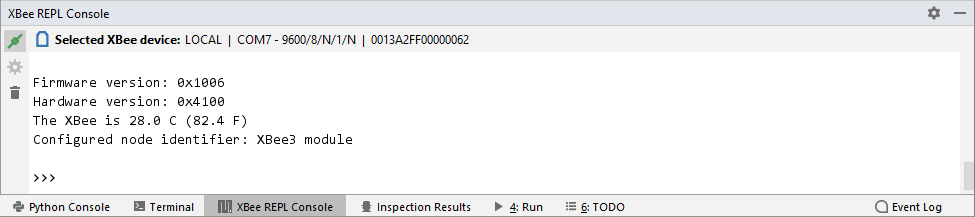
Note For more information about the REPL Console, see Use the console to communicate with your device.
 PDF
PDF


