Show cellular device location on a map
To see the location of one cellular device on a map
-
On the main menu, click Devices.
-
In the list that displays, click the Name or Device ID of the device you want to view.
-
On the device dashboard that displays, click the Device Map tab.
A map displays. The pin represents the location of that device.
To see the location history of one cellular device with GNSS on a map
Required configuration items
- Access to Digi Remote Manager
- GNSS-enabled router
- Enhanced Location Services feature enabled (see Configure enhanced location tracking in the user guide for your router)
- DAL OS 25.5.52.20 firmware or newer installed
-
On the main menu, click Devices.
-
In the list that displays, click the Name or Device ID of the device you want to view.
-
On the device dashboard that displays, click
 .
. -
In the Map Preferences widget that displays, select the Historical Location checkbox.
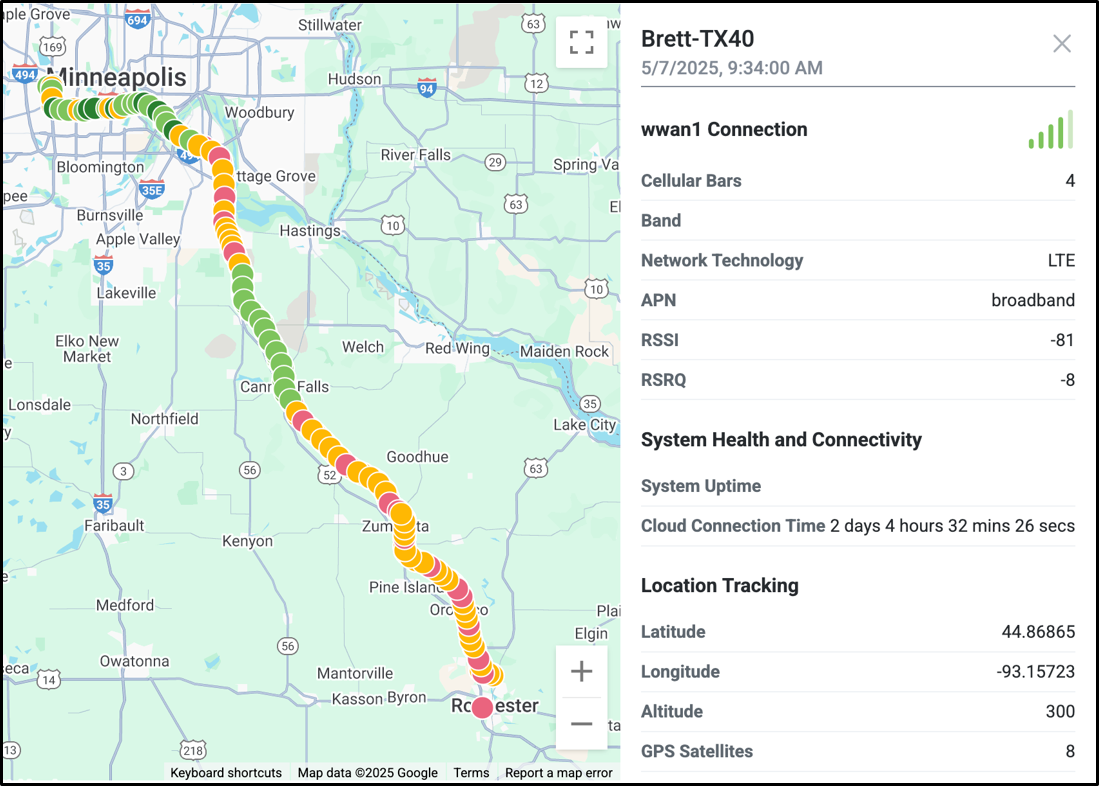
A map displays. Each pin on this map represents the location of that device at the time it sent data to Digi Remote Manager.
To see the locations of all devices in a fleet on a map
-
On the main menu, click Devices.
-
Click
 .
.The map displays. Each device is represented by a pin on the map.
 PDF
PDF


