Remote Command Interface (RCI) step
-
Click RCI to add the RCI step to your automation.
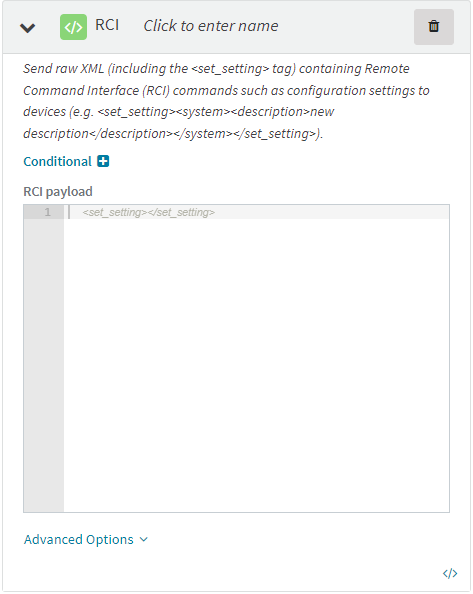
-
Click the header to enter a name for the step.

-
Type an RCI command in XML format. The following commands are supported:
-
query_setting
Retrieves the device's current settings. For example, to return all of the settings for a device, type:
<query_setting/>
You can also return a subset of the device settings. For example:
<query_setting>
  <system/>
<query_setting/>
will return the device settings under the system node.
-
set_setting
Sets the device's configuration settings. For example, to set the name of a device:
<set_setting> <system> <name>Techpubs_device</name> </system> </set_setting> -
query_state
Retrieves the state of the device. For example, to return the complete state of a device:
<query_state/>
You can also return a subset of the state. For example:
<query_state> <metrics> <network> <device> <eth/> </device> </network> </metrics> </query_state> -
set_state
Sets the temporary running state of the device.
-
query_descriptor
Retrieves the RCI descriptor from a device.
-
do_command
Passes a command the specified target.
See the Remote Command Interface (RCI) Specification for further information about RCI commands.
To view the output of the RCI commands that retrieve information from the device:
-
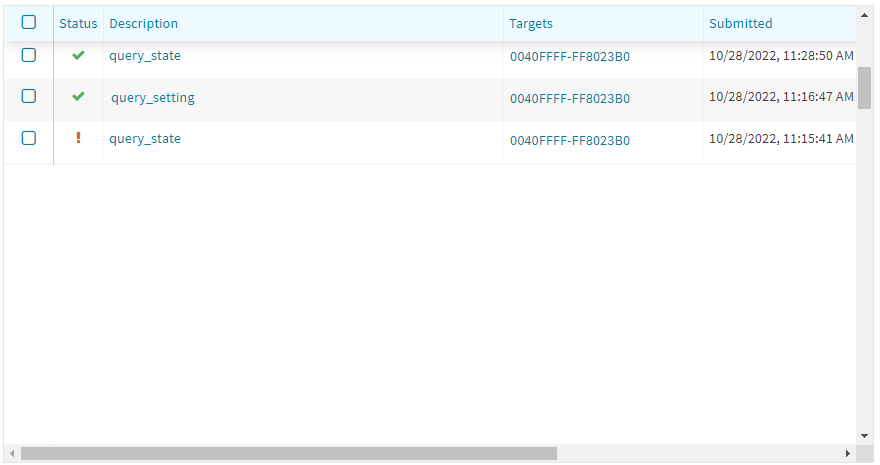
In the main menu, click Activity.
The output of the RCI command step is listed by name.
-
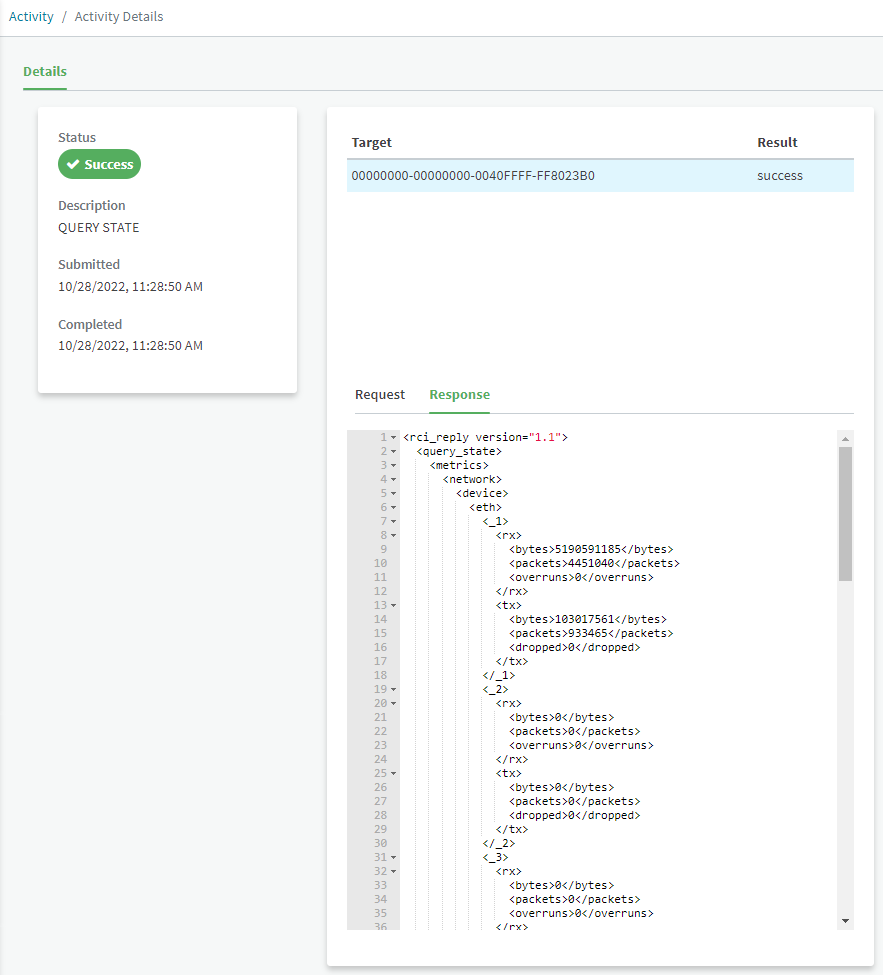
Click the Description to view Activity Details.
The activity details lists the filenames, modification date, size and hash.
-
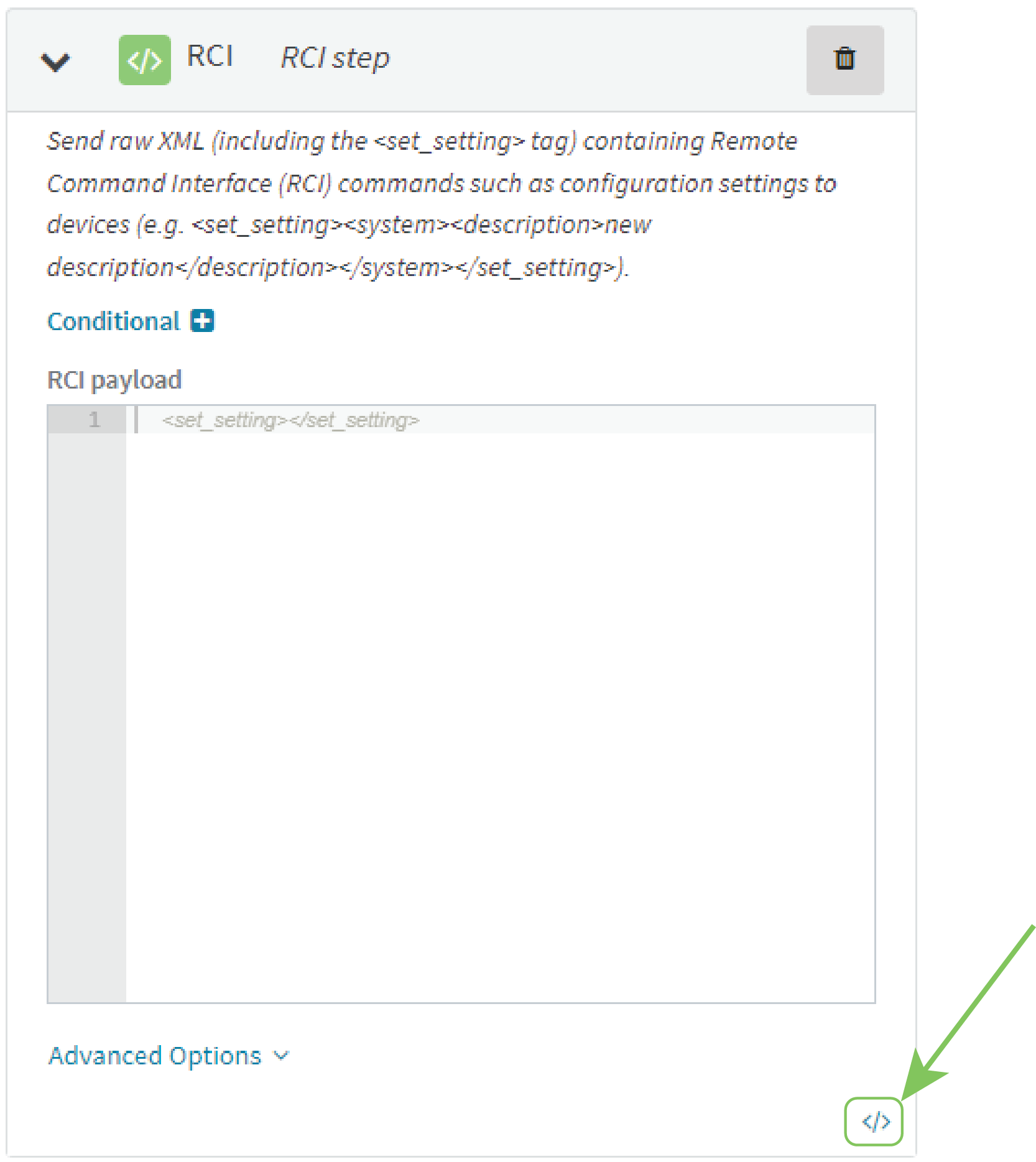
 You can also view the step in JSON format.
-
Click </>.
-
Click to return to edit mode.
Conditional processing
You can optionally set conditions that will determine whether this step should be executed.
-
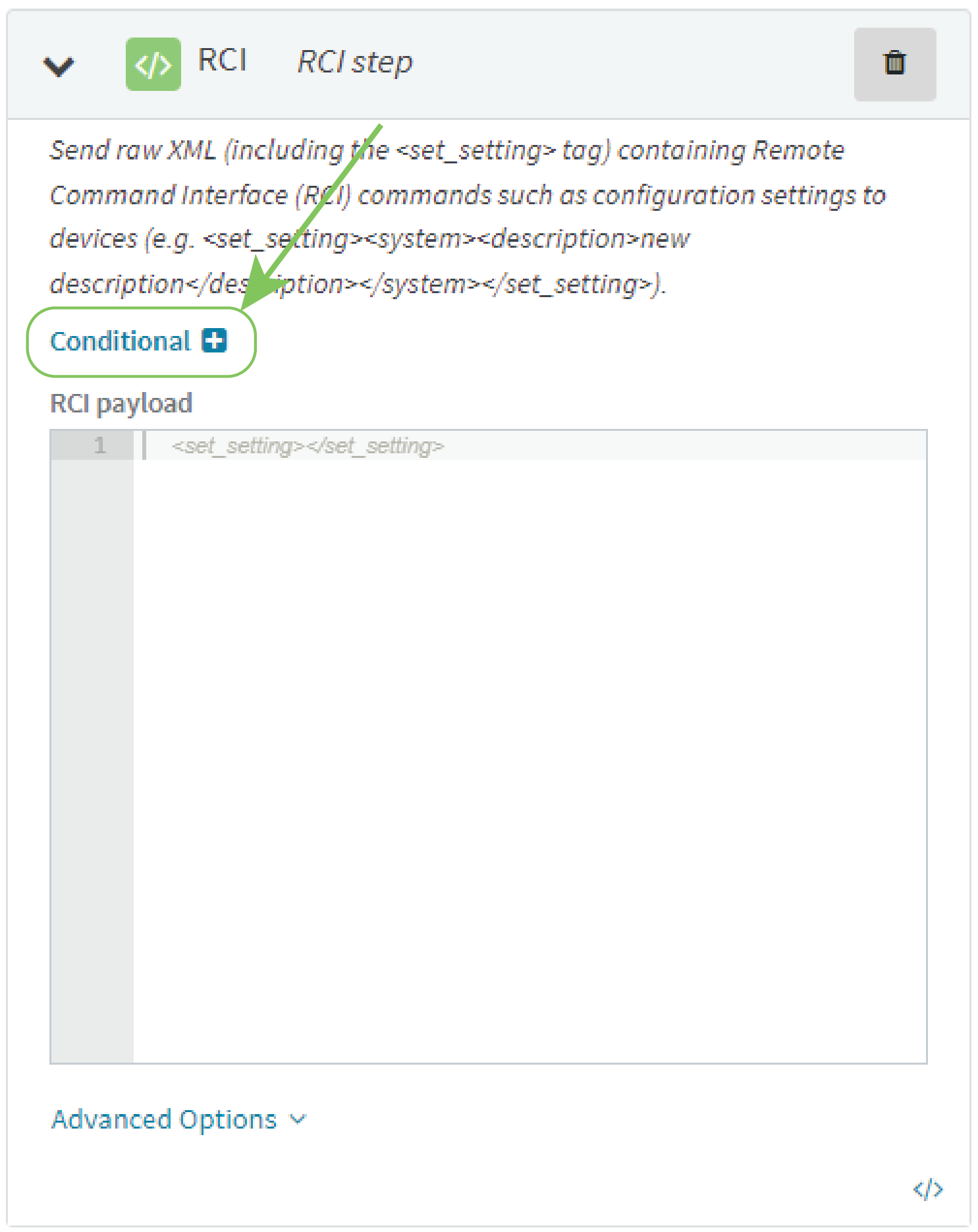
Click to expand Conditional .
-
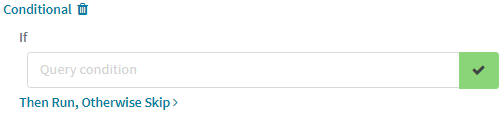
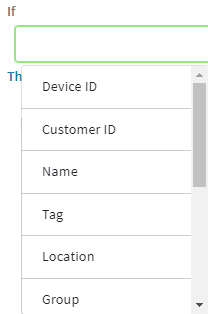
Click Query condition.
A menu with a list available conditional query options displays.
-
Select an option, type a value, and click .
-
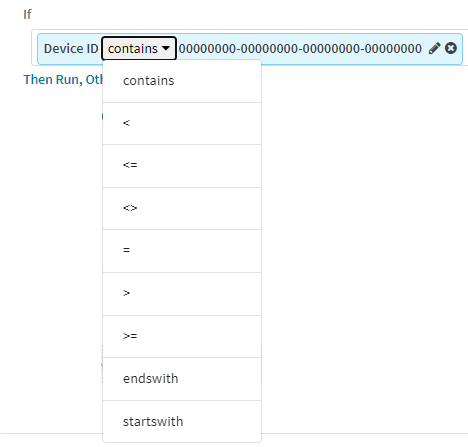
Comparison operators control conditional matching. Click the comparison operator to open a menu to select a different operator.
-
Click in the Query condition text box again to add additional query options.
-
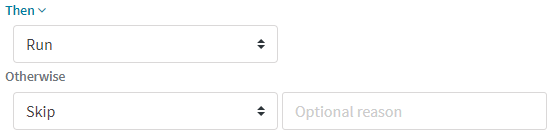
By default, the step will run if the query conditions are met, and will be skipped if the conditions are not met. To change the default behavior:
-
Click Then Run, Otherwise Skip >.
-
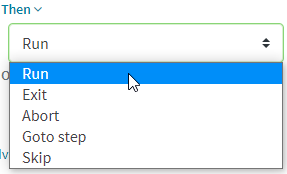
For Then, click to select an action to be performed when the query conditions are met:
-
If Goto step is selected, click Select a step name... and select the name of the step.
Note To use the Goto step functionality, you must enter a name for steps during configuration of the step.
-
(Optional) If Exit, Abort, or Skip are selected, for Optional reason, type a message that will appear in the run details.
-
-
For Otherwise, click to select an action to be performed when the query conditions are not met.
-
-
Comparison operators
| Operator | Matches if the current value of the query option... |
|---|---|
| contains | Contains the value entered in the Query condition text box. |
| < | Is less than the value entered in the Query condition text box. |
| <= | is less than or equal to the value entered in the Query condition text box. |
| <> | Does not equal the value entered in the Query condition text box. |
| = | Equals the value entered in the Query condition text box. |
| > | Is greater than the value entered in the Query condition text box. |
| >= | is greater than or equal to the value entered in the Query condition text box. |
| endswith | Ends with the value entered in the Query condition text box. |
| startswith | Begins with the value entered in the Query condition text box. |
Error processing and post-processing
Advanced Options allow you to configure what actions to take when the step produces an error, and what actions to take when the step has completed successfully.
-
Click Advanced Options.
-
Enable Wait if Offline to allow this step to be queued while the device is offline and completed the next time it connects. Any actions that can be taken while the device is offline, will still be taken.
-
Click On Error to select what should happen when the step produces an error:
-
End: The automation will end when this step produces an error.
-
Continue: The automation will proceed to the next step when this step produces an error.
-
Retry: The automation will retry the step when it produces an error.
-
Select the number of times to retry the step. If the step does not succeed within the selected number of times, the automation will end.
-
-
-
Enable On End to select an action that should happen when the step ends:
-
Select whether the on end action should take place Always, When successful, or When errored.
-
Select an action, either:
-
Goto step: click Select a step name... and select the name of the step.
Note To use the Goto step functionality, you must enter a name for steps during configuration of the step.
-
Exit
-
Abort
-
-
 PDF
PDF


