Wireless-to-Ethernet network bridging
This topic contains guidelines for using the target platform as a network bridge between two networks.
Requirements
You will need the following to make a target platform act as a network bridge between two networks:
- The target platform needs to have at least two network interfaces (either wired or wireless).
- The Linux kernel image of the target platform requires support for network bridging.
Methods
Two methods can connect a pair of networks:
- Bridging: The platform device acts like a tunnel that connects the two networks (or two network segments) forming one big subnet that allows devices to connect to each other without the need for routers.
- IP forwarding: The platform device translates the address of a packet to a new destination according to a routing table.
The following content explains the bridging method.
Bridging
This chapter illustrates how to configure a target platform to act as a network bridge. Consider the following scenario:
- A target platform embedded device acts as the bridge.
- The target is connected through one wired Ethernet interface to a wired LAN that has access to the Internet.
- There are three wireless devices to connect by bridge.
- There is no wireless AP, so the wireless devices cannot access the LAN.
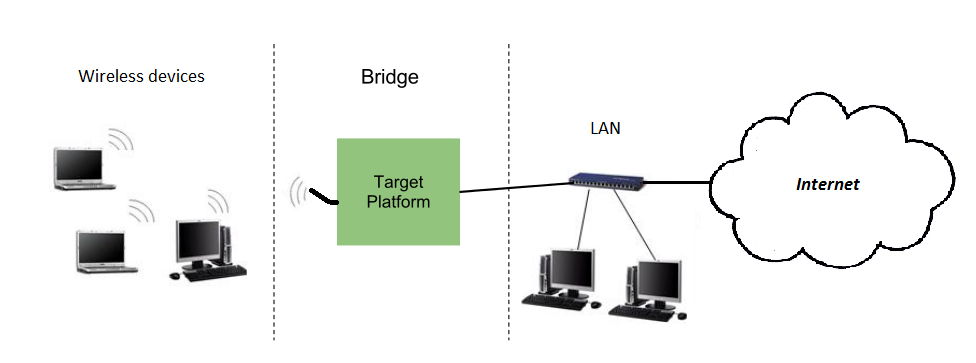
By configuring the platform as a bridge, you can make the three wireless devices connect to the LAN and gain access to the Internet.
Note A network bridge can be established between two network interfaces of any kind: two wired Ethernets, a wired Ethernet and a USB-Ethernet gadget, a USB-Ethernet gadget and a wireless interface, and so on.
In this document we will show how to establish a network bridge between a wired Ethernet (eth0) and a wireless interface (wlan1), including how to configure the wireless interface. You can follow similar steps to create the bridge between arbitrary network interfaces as long as you configure each interface properly.
For a platform to act as a bridge using a wireless interface, the wireless interface needs to be able to operate in SoftAP mode.
CAUTION! CAUTION! Digi programs one MAC address for the wireless interface during manufacturing of the SoM. This is the MAC address used for the wlan0 interface. The wireless chip supports up to three other virtual MAC addresses that you need to program before use (otherwise they have default values). See MAC addresses for instructions.
Network bridging support on the kernel
Network bridging support on the kernel requires the following options:
Networking support -->
    Networking options -->
        [*]  802.1d Ethernet Bridging (CONFIG_BRIDGE)
        [*]  IGMP MLD snooping (CONFIG_BRIDGE_IGMP_SNOOPING)
These options are already enabled by default on Digi Embedded Yocto kernel configuration.
Configure Network Manager
For the bridge to work you need to prevent Network Manager daemon from managing the involved network interfaces.
Add the network interfaces involved in the bridge (in the example eth0 and wlan1) to the list of unmanaged-devices in /etc/NetworkManager/NetworkManager.conf.
/etc/NetworkManager/NetworkManager.conf
[main]
plugins=ifupdown,keyfile
no-auto-default=type:ethernet
rc-manager=file

[ifupdown]
managed=false

[keyfile]
unmanaged-devices=interface-name:p2p*;interface-name:wlan1;interface-name:eth0

[device]
wifi.scan-rand-mac-address=no
Restart the Network Manager daemon to use the new configuration:
~# /etc/init.d/networkmanager restart
Stopping NetworkManager: done
Starting NetworkManager: done
Wired network interface
Make sure that the wired network interface is connected to the network and bring it up:
~# ifconfig eth0 up
Wireless network interface
Bring the wireless interface down to re-configure it:
~# ifdown wlan1
Configuration as SoftAP
Configure the wireless interface as SoftAP. Edit the file /etc/network/interfaces and type the following for the wireless interface:
/etc/network/interfaces
auto wlan1
iface wlan1 inet manual
        post-up /etc/init.d/hostapd start
        pre-down /etc/init.d/hostapd stop
This configuration:
- Sets the wireless interface as manual so that it doesn't get an IP when it is brought up.
- Calls the init script /etc/init.d/hostapd that runs the hostapd daemon.
Configure the connection settings of your wireless interface at file /etc/hostpad_<iface>.conf on your target's root file system. The following example shows a configuration that uses WPA-PSK/AES authentication with SSID my-bridge-ap:
/etc/hostapd_wlan1.conf
ctrl_interface=/var/run/hostapd
ctrl_interface_group=0
interface=wlan1
driver=nl80211

# WPA2-AES encryption
ssid=my-brigde-ap
auth_algs=1
wpa=2
wpa_key_mgmt=WPA-PSK
wpa_pairwise=CCMP
wpa_passphrase=password-wpa2aes

# IEEE 802.11ac
hw_mode=a
channel=36
ieee80211ac=1
ieee80211n=1
Start the wireless interface as SoftAP
Bring the interface up with the new SoftAP configuration:
~# ifup wlan1
Bridge interface
Create the bridge interface br0:
~# brctl addbr br0
Remove the IP addresses of the two network interfaces that the bridge will join (in the example eth0 and wlan1).
~# ifconfig eth0 0.0.0.0
~# ifconfig wlan1 0.0.0.0
Add each network interface to the br0 bridge:
~# brctl addif br0 eth0
~# brctl addif br0 wlan1
Verify the bridge lists the two interfaces:
~# brctl show
bridge name    bridge id              STP enabled   interfaces
br0            8000.0004f3280000      no            eth0
                                                    wlan1
Note If the interfaces are not correctly listed as associated to the bridge you will need to delete the bridge and re-create it. To remove the bridge and restart the procedure, you can do the following:
~# ifconfig br0 down
~# brctl delbr br0
Assign a static or dynamic IP address to the bridge. This step is optional but recommended if you want to reach the bridge (the target platform) in the network.
Static IP assignment
~# ifconfig br0 192.168.1.5 netmask 255.255.0.0
Bring the bridge up:
~# ifconfig br0 up
Your configuration is complete. Your wireless devices should now be able to connect to the target platform (acting as SoftAP), and reach any device in the LAN network, or the Internet (if the LAN has access to it).
Create the bridge interface automatically at boot time
To automatically create the bridge interface at startup, edit /etc/network/interface and add the following lines at the end of the file:
/etc/network/interfaces
auto br0
iface br0 inet static
        bridge_ports eth0 wlan1
        address 192.168.1.5
        netmask 255.255.0.0
Note The bridge must appear as the last item in the file to make sure the relevant interfaces exist when the bridge is created.


