Configure Python programs
You can configure the WVA to automatically run a specified set of Python programs each time the WVA starts up and when the Python applications exit. You access the Python Configuration page in the WVA web interface.
To configure a new Python application in the WVA:
- Open the WVA web interface.
- Upload the desired Python file to the WVA device from the File Management page. For instructions, see Upload a file to the WVA.
- In the web interface, go to Configuration > Python. The Python Configuration page appears.
The page displays a list of Python processes or applications that are currently configured in the WVA. The status of each process and the action that will be executed when the Python applications exit also appears. The list is empty if no Python processes or applications have been configured.
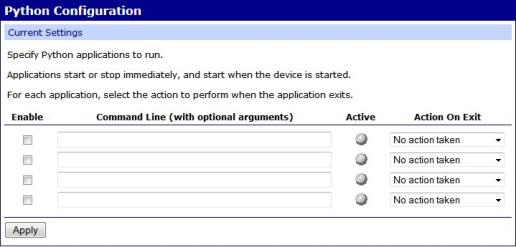
- In the Command Line field, enter the name of the Python file to be configured, and any program arguments.
- Configure the application to automatically run when the WVA device starts up by clicking the corresponding checkbox in the Enable column.
Note When you check this option, the Python application also runs when the configuration changes are saved.
- In the corresponding Action On Exit combo box, select the action option that should run when the Python application exits.
- No action taken: Continue device operation without doing anything about the program.
- Restart the application: Restart the Python application.
- Reboot the device: Reboot the WVA.
- Click Apply to save the changes.
- After a Python application has been configured, the indicators in the Active column change color to show the status of the Python application.
- Gray: Application is not running.
- Green: Application is running.
 PDF
PDF


