Troubleshoot Remote Manager connection
Device configuration
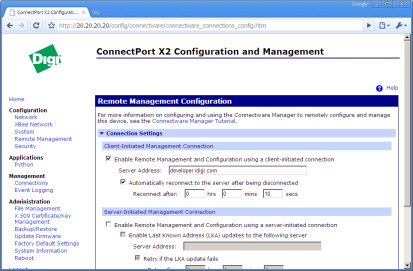
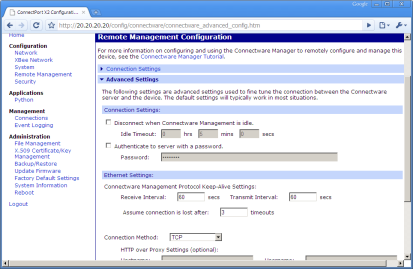
First, verify that your device is configured to connect to iDigi. To do this, go to the Web UI of the device. From there, click on the remote management tab. Make sure the the box is checked to enable remote management and that the correct server is configured. You will probably also want to make sure the box is checked for the device to automatically reconnect. You also have a few options to check under the Advanced Settings heading on this page. On some devices, there is the option to use SSL as the Connection Method. Initially, you may want to make sure this is set to TCP, and then change it to SSL once you have successfully verified your device is connected.
Images
Adding device to Remote Manager
Next, we will make sure your device is added correctly to Remote Manager. Login to your account. If you have not yet added your device, do so by using the dialog to add a device. If your device is on your local LAN, you'll be able to use the automatic discovery mechanism to add it, or if that doesn't work, you can use the manual mode and just type in mac address or device id of the device.
After your device is added, it should show up in the list of devices. After a short amount of time, is the device is configured correctly, you should be able to refresh the device list and see the device is connected. If it doesn't connect, you may want to reboot the device just to make sure any previous connections the device have made are severed, so it will initiate the new connection. If it is not connected at this point, we'll move on to checking if DNS resolution is working for the device.
Images
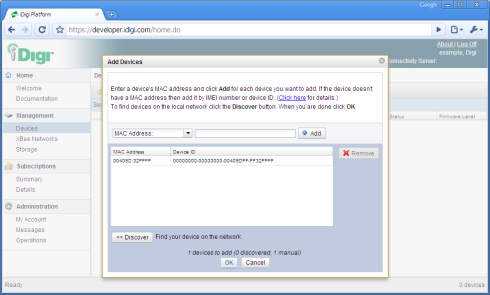
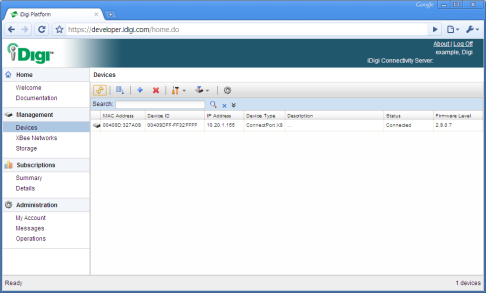
Manually adding a device Device list with connected device
Verify DNS is working
Go to the Web UI of the device. Go to the System Information page, and click on the Diagnostics heading. Enter the Remote Manager server you are trying to connect the device to in the hostname field. Click ping and see if the device is able to communicate with the Remote Manager server by hostname. If this fails, trying pinging the Remote Manager server from your computer to determine the IP address of the Remote Manager server. Enter this IP address in the hostname field on the diagnostics page of the device, and see if the device is now able to communicate with the server. If it can, your device may not be configured correctly to handle DNS. This often happens when you assign a static address to the device without specifying a DNS Server.
If the device is still not able to ping the Remote Manager server by IP address, you may want to try pinging another hostname such as www.google.com, to determine if your device is capable of pinging a public system.
Images
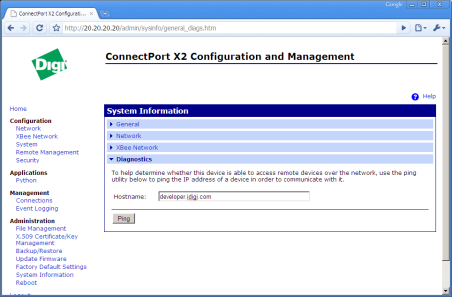
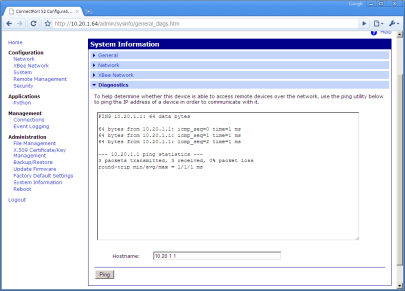
Diagnostics page A successful ping
Check for firewall
Open up the command prompt (Window key + R, type cmd into the text box and hit enter). enter the command "telnet developer.idigi.com 3197".
C:\>telnet developer.idigi.com 3197
If you receive the following:
Connecting To developer.idigi.com...Could not open connection to the host, on port 3197: Connect failed
Contact your network administrator about adding an exception into your networks firewall. Or else if the screen turns blank you can close the window, there is no issue.
Check device trace
When the connection problem is not immediately apparent, it is helpful to check the device's trace output to determine if the device is actually trying to connect, and to take a look at any helpful information that may be provided in the trace output. To turn on trace and see the output, you will need to telnet to the IP address of your device. Once you are in, execute the command set trace state=on mask=edp:* On Windows XP, you can open a command prompt and the telnet command is available. On other operating systems the process may be different.
On each device connection attempt, you should now see some output that may provide some information as to why the device is failing to connect.
Images
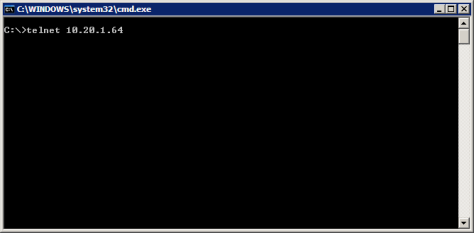
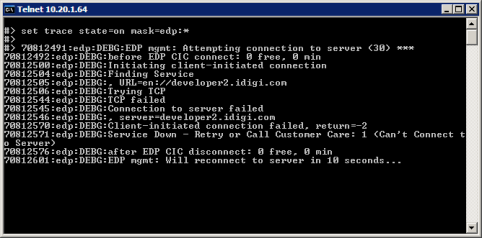
Telnet to the Device Turn on Trace and Get Output
 PDF
PDF


