Auto-start Python on a Digi gateway
By web interface
The most direct way to enable auto-start is via the device's web interface. Select the Python link on the left, then the Auto-Start Settings. You will be shown the four scripts you can auto-start. Enter the program name, including the ".py" extension. Do not include the command "Python"!
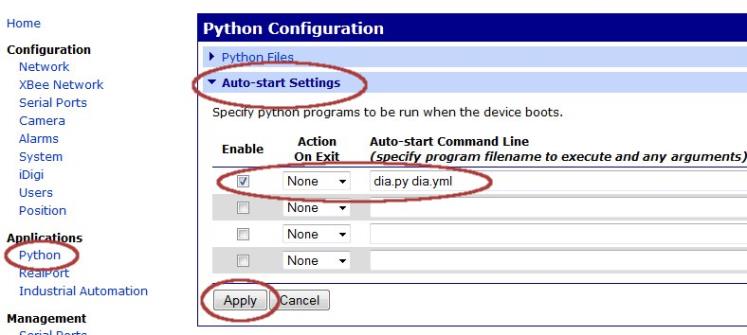
The On-Exit actions default to None, but can be set to restart the script, or reboot the gateway. However a warning - never enable a restart/reboot option while debugging your code, for having a simple typo in your main routine can cause the gateway to reboot in a tight loop which makes recover difficult (impossible by remote Remote Manager access). Users of the DIA framework should review this helpful change to dia.py: Rapid Reboot Detection.
Notes on ConnectPort X2e ZB
- Selecting the Python link on the left directly shows you the Auto-Start settings. Unlike on the ConnectPort X2/X4, Python files are not shown on this page. The Python files are accessed under the File Management link.
- The ConnectPort X2e ZB has built in Rapid Reboot Detection. The faster a reboot occurs, the longer the X2e/Linux kernel delays before auto-starting Python scripts.
By Device Manager
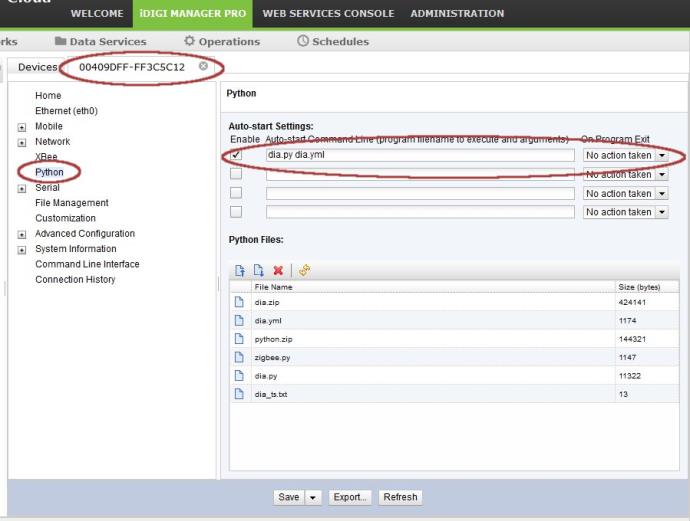
Setting auto-start via the Remote Manager web console is much like setting it via the web interface. Note the above warning about the restart/reboot setting! if the device is rebooting every few seconds due to a Python error or simple typo, you will not be able to recover by Remote Manager access.
By RCI/SCI
The Python Auto-Start settings are held within the 'Python' settings group. See Digi's RCI and SCI documentation to understand how to read and write settings.
Request
<rci_request version="1.1">
 <query_setting>
  <Python />
 </query_setting>
</rci_request>
Response
<rci_reply version="1.1">
 <query_setting source="current" compare_to="none" encrypt="none">
  <Python><state>on</state><command>dia.py dia.yml</command><onexit>none</onexit></Python>
  <Python index="2"><state>off</state><command></command><onexit>nosne</onexit></Python>
  <Python index="3"><state>off</state><command></command><onexit>none</onexit></Python>
  <Python index="4"><state>off</state><command></command><onexit>none</onexit></Python>
 </query_setting>
</rci_reply>
Digi DIA notes
The DIA framework requires at least 2 special files to run - dia.py and dia.zip. You run the dia.py script to start the framework, and this file handles the diverse platform differences, mounting the dia.zip and running the framework from within. By default the dia.yml configuration is embedded in the dia.zip file. Some users prefer to manually keep a copy of dia.yml outside of the dia.zip to simplify remote browsing and changes. If this is done, you need to auto-start "dia.py dia.yml".
As of DIA version 2.0, creating a simple text file in the Python area named "nospin.txt" will enable dia.py to watch for a rapid reboot situation, which means the gateway has been rebooted more than 10 times in 20 minutes. This causes dia.py to delay launching the dia.zip files. See also: Rapid Reboot Detection.
Digi ESP notes
The Digi ESP (Eclipse for Python) IDE use a default start file name of dpdsrv.py. If you use ESP to upload your Python code, you can safely put dpdsrv.py into your auto-start setting instead of dia.py.
Generally, dpdsrv.py does nothing more than run your script, which means you can often safely bypass dpdsrv.py and run your own main script. However, opening the dpdsrv.py script in an editor allows you to see what it is doing. Upon some platform (like a Windows PC), the dpdsrv.py *DOES* create a corrected search path so cannot be bypassed.
 PDF
PDF


