Configure serial ports
- Click Configuration > Serial Ports.
- Click the port number that you want to configure.
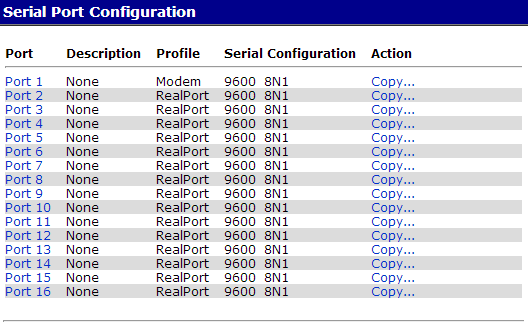
- Click Change Profile and select a profile based on the device you have connected to your port.
If this is the first profile assigned or the unit has been restored to factory defaults, the Select Port Profile page is displayed. The following section shows the settings available for each profile.
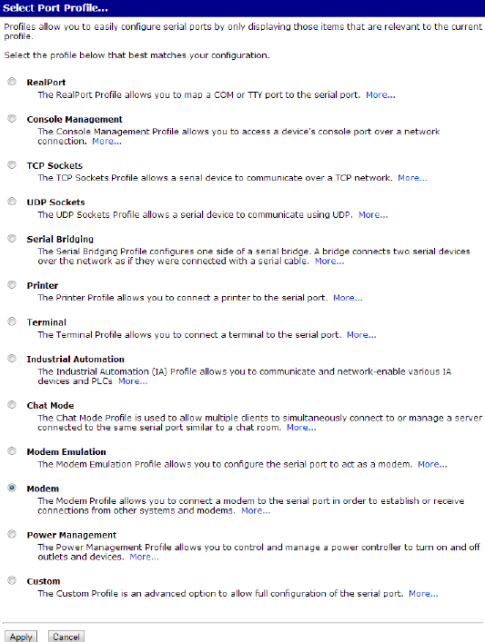
The available port profiles depend on supported by your Digi device. For example, if your Digi product does not support Power Management feature, a port profiles for that feature is not displayed. To verify whether your device supports a particular feature, see Quick reference for configuring features. The More link provides additional details about each profile.
- Click Apply to save the profile. The interface will determine any additional settings and port options page will come up and ask for additional parameters if needed. See Port profiles or click Help for additional information.
- Enter the appropriate parameters and click Apply.
- Click Reboot for changes to take effect.
 PDF
PDF


