To display the routing table:

Web
- Log into Digi Remote Manager, or log into the local Web UI as a user with full Admin access rights.
- Access the device configuration:
Remote Manager:
- Locate your device as described in Use Digi Remote Manager to view and manage your device.
- Click the Device ID.
- Click Settings.
- Click to expand Config.
Local Web UI:- On the menu, click System. Under Configuration, click Device Configuration.
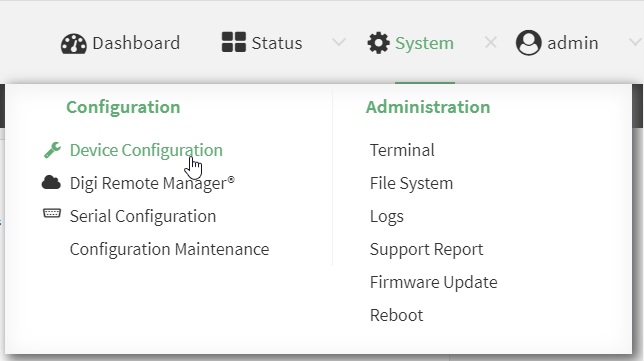
The Configuration window is displayed.
- Click Status > Routes.
The Network Routing window is displayed.
- Click IPv4 Load Balance to view IPv4 load balancing.
- Click IPv6 Load Balance to view IPv6 load balancing.
Command line
- Select the device in Remote Manager and click Actions > Open Console, or log into the Connect EZ 16/32 local command line as a user with full Admin access rights.
Depending on your device configuration, you may be presented with an Access selection menu. Type admin to access the Admin CLI.
- At the Admin CLI prompt, type show route:
- Type exit to exit the Admin CLI.
Depending on your device configuration, you may be presented with an Access selection menu. Type quit to disconnect from the device.
You can limit the display to only IPv4 entries by using show route ipv4, or to IPv6 entries by using show route ipv6. You can also display more information by adding the verbose option to the show route and show route ip_type commands.
 PDF
PDF


